CG FC200 ECU programmer can act as a substitute PCM host to enable J2534 functionality within PCMflash software. It works with many different modules.
Preparation Requirements
- CG FC200 hardware unit
- FC200 software version 1.3.5.0 or higher
- PCM software (genuine or clone versions are both acceptable)
- PCM dongle and PCM driver
Important note: The CGDI manufacturer does not supply the PCM software, dongle, or driver. Users must purchase these items separately.
Operational Steps
1. Download and install FC200 software
Free download FC200 V1.3.5.0
Connect FC200 to your PC using a USB cable.
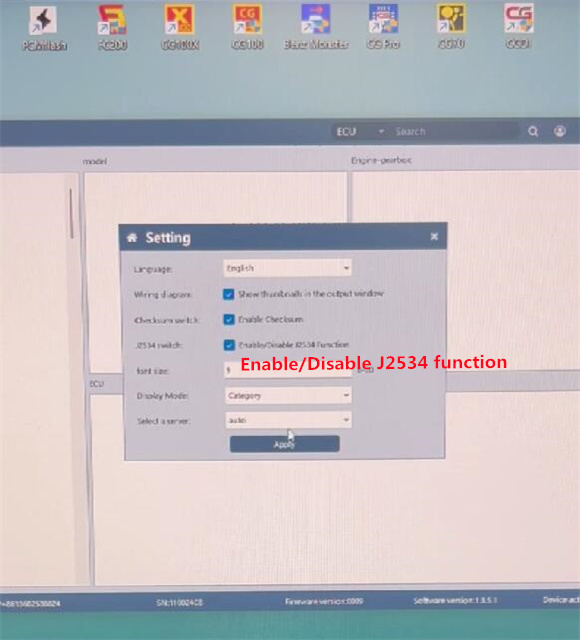
Run FC200 software, navigate to Setting → Enable/Disable J2534 function, then click “Apply” to activate J2534 function.
2. Connect hardware and prepare the system
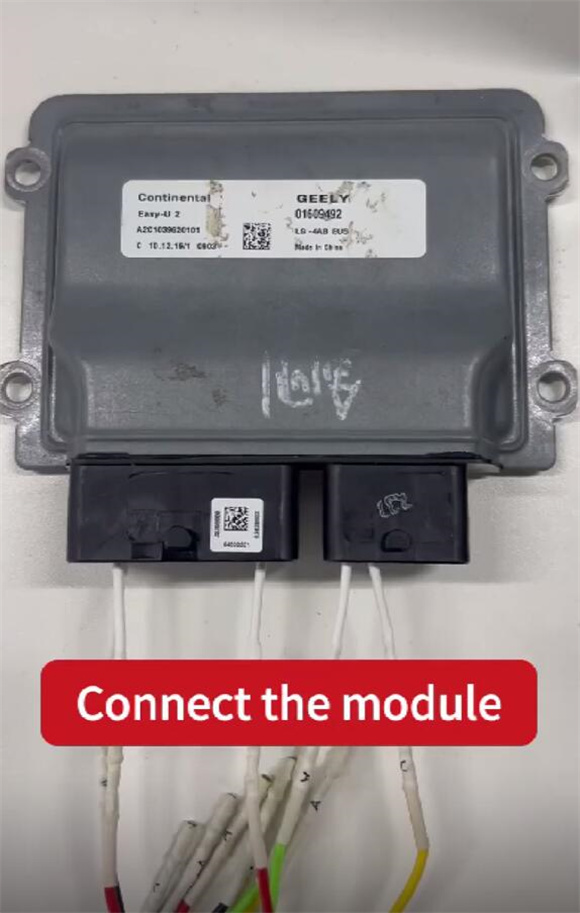
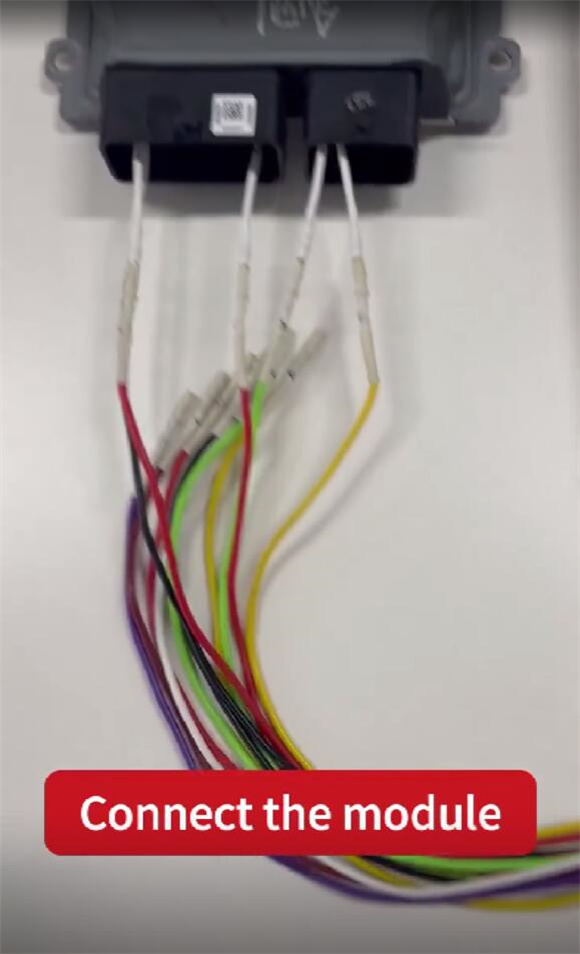
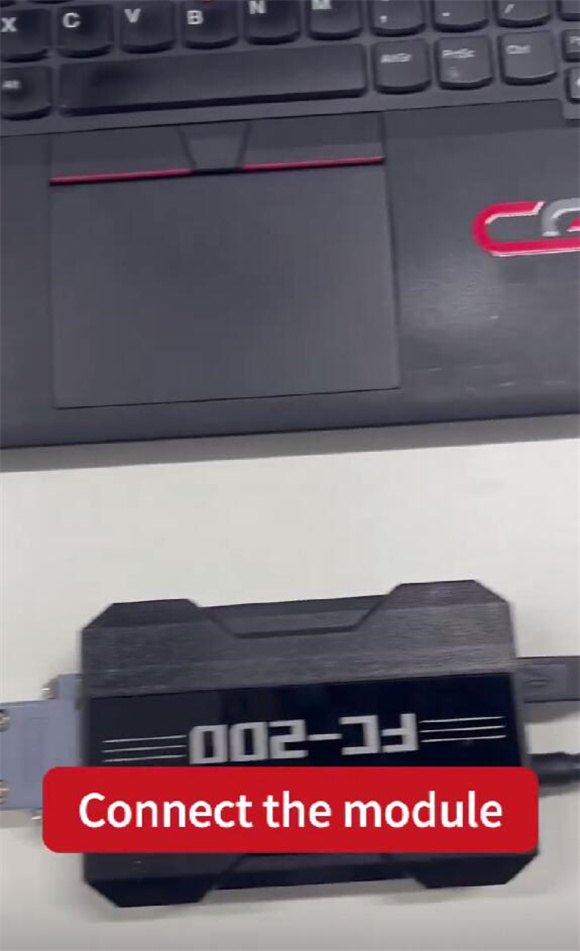
Properly connect FC200 ECU programmer to the corresponding ECU using FC200 Adapter.
Supply power to FC200 unit.
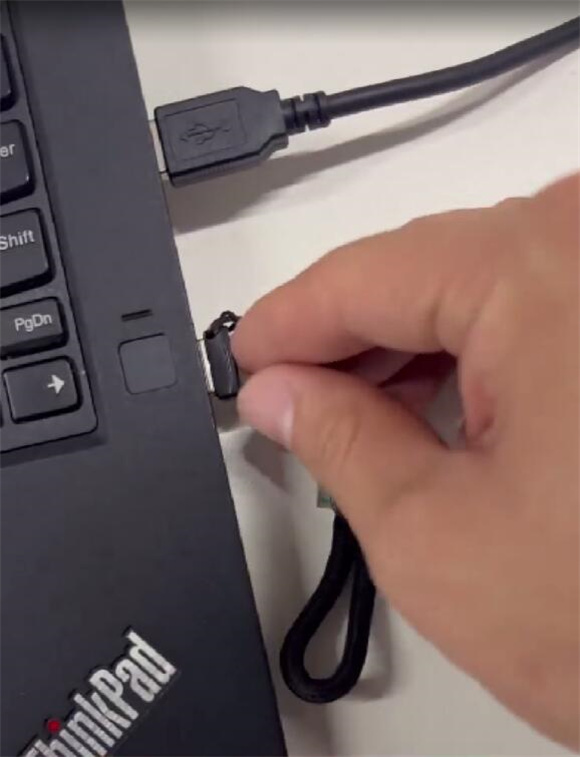
Insert the PCM dongle into your PC.
3. Use PCMflash software
Open PCMflash software
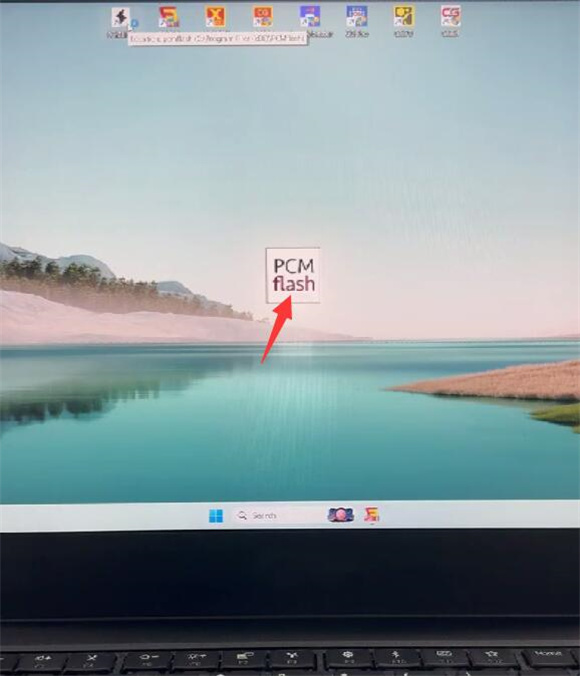
Select the J2534 type, then click “Identification” to retrieve ECU information.
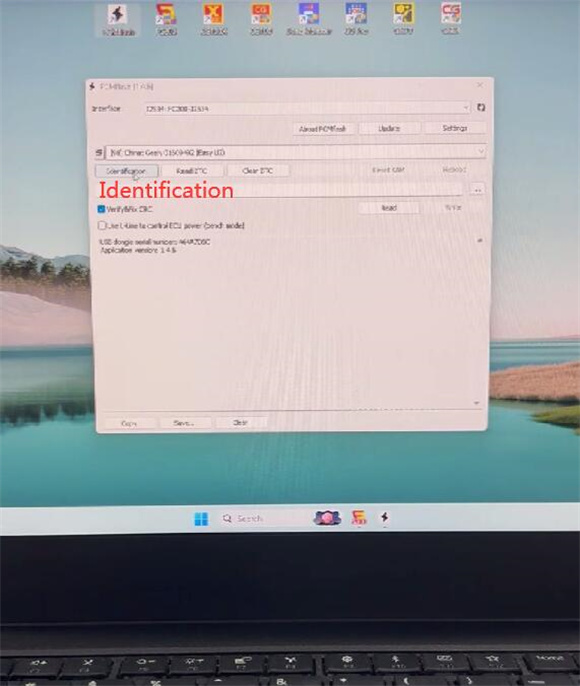
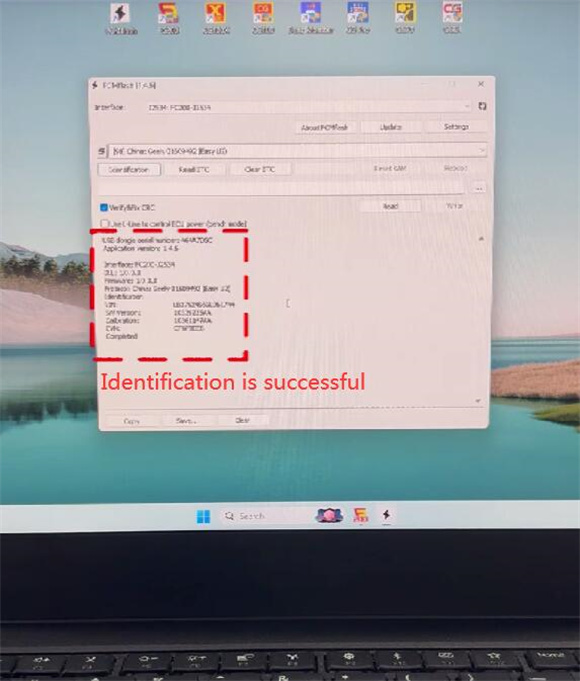
Once identification is successful, click “Read” to begin reading data.
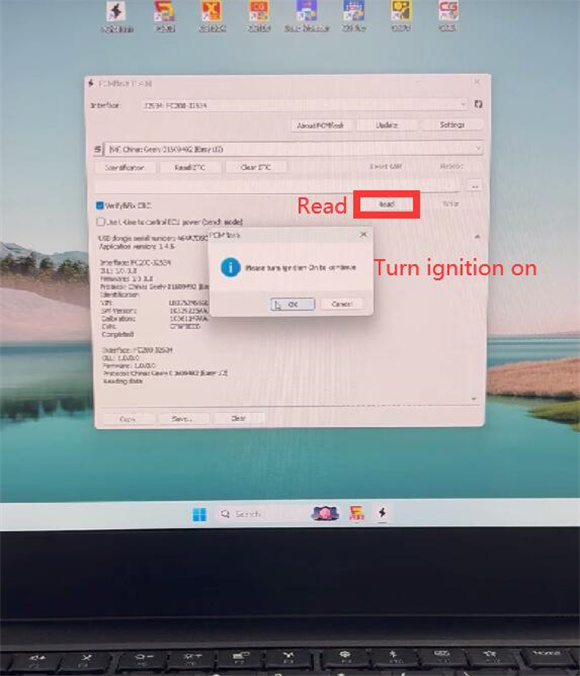
Follow the on-screen instructions to turn the ignition on.
Wait for the reading process to finish.
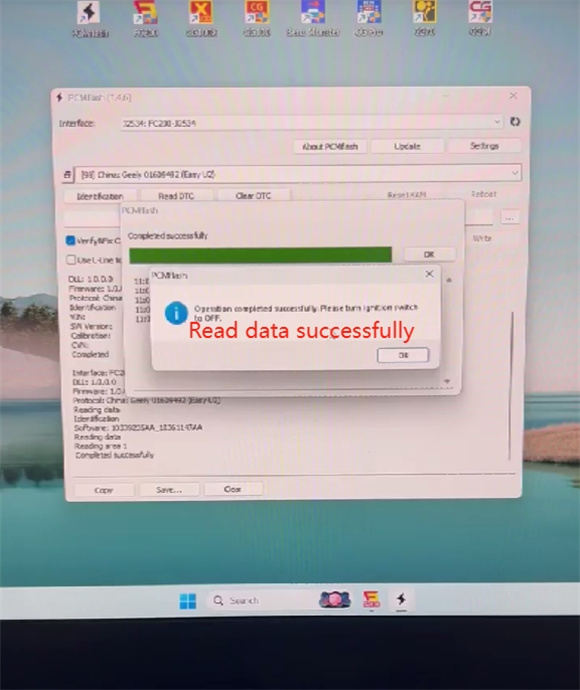
Procedure complete!
Note:
OBD data reading is supported, but only on vehicles equipped with an OBD port.