

If you accidentally delete an application on your LAUNCH X431 PAD5 LINK HD, don’t worry. This guide shows you how to resolve app installation or deletion issues using APP Init on LAUNCH X-431 PAD5.
This method is simple and helps you quickly restore missing or faulty apps.
Steps:
Step 1 – Uninstall the Faulty App
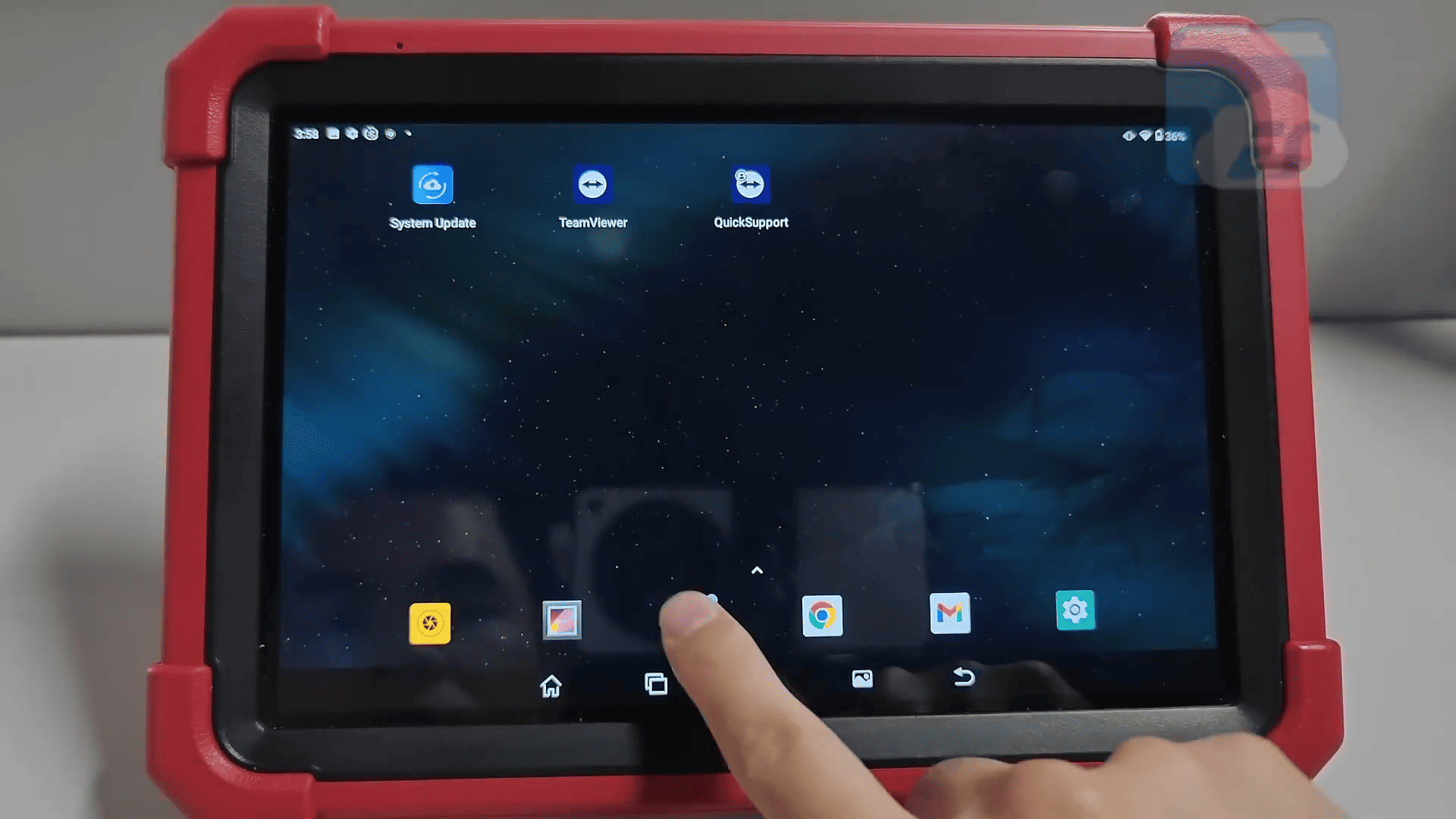
Find the problematic app (e.g., X-431 HD), then long press and uninstall it.
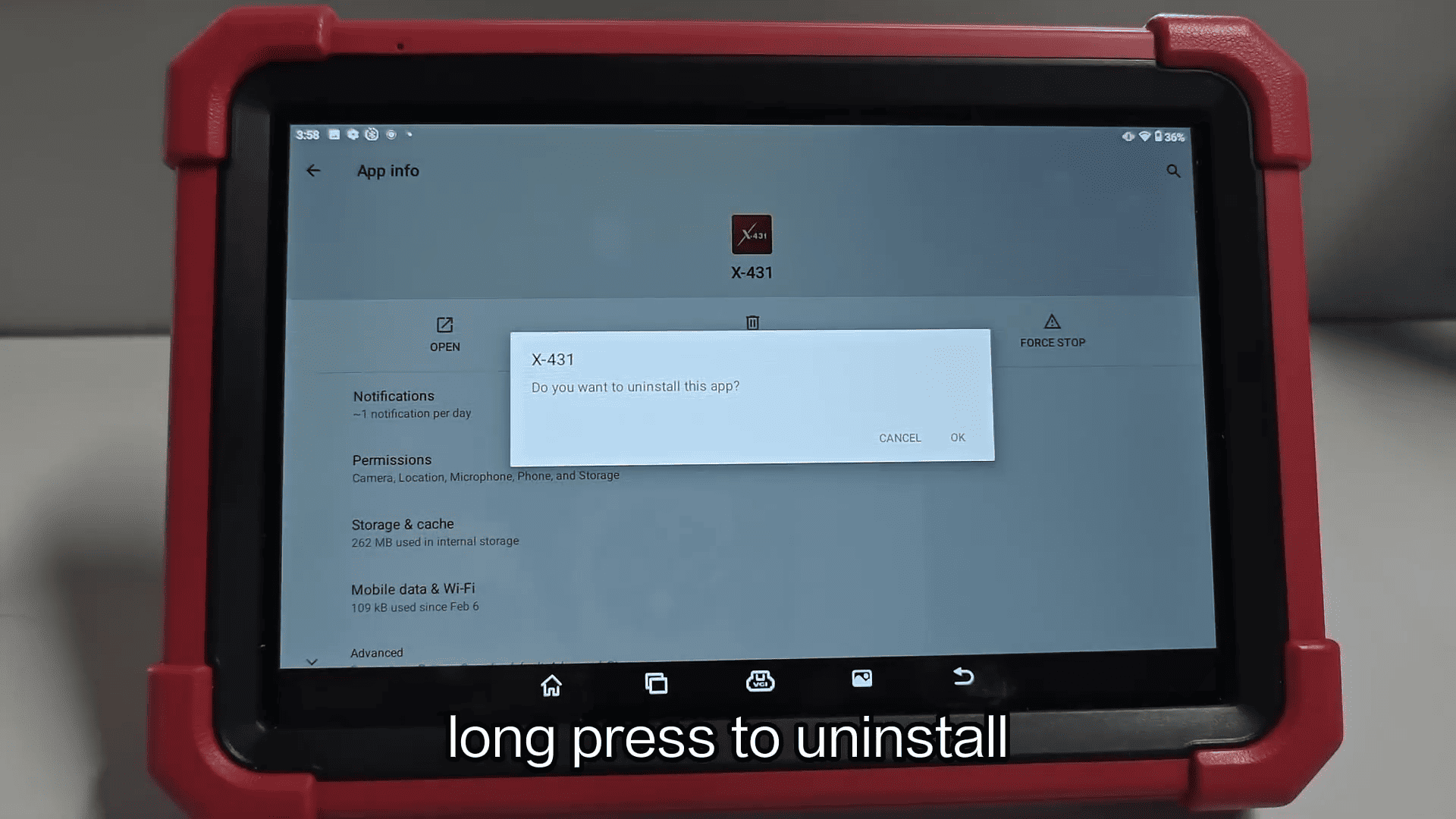
Step 2 – Delete Residual Files
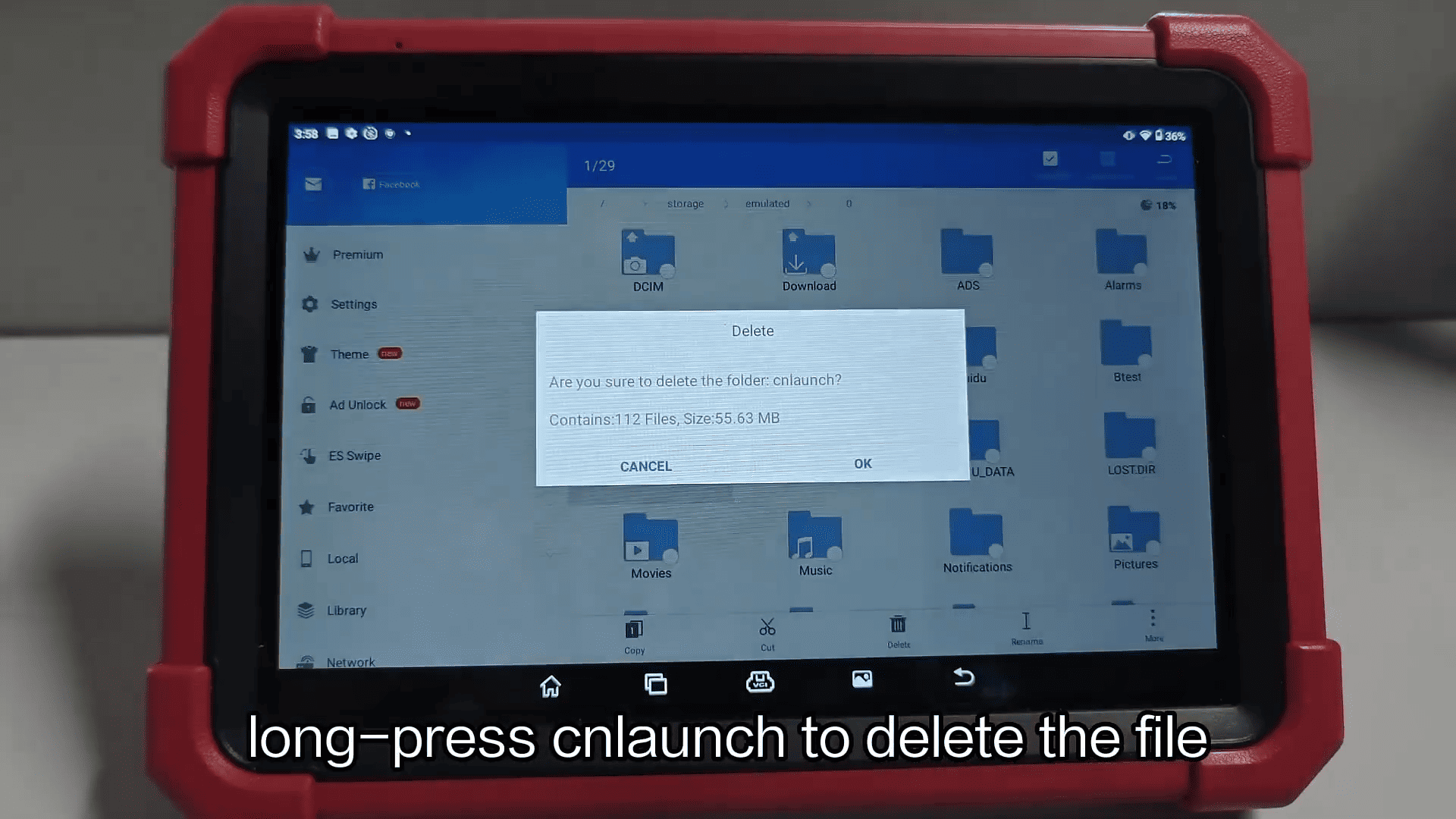
Open ES File Explorer → Select Internal Storage
Find the cnlaunch folder, then long press to delete it
Step 3 – Open APP Init
Launch the APP Init tool on your device
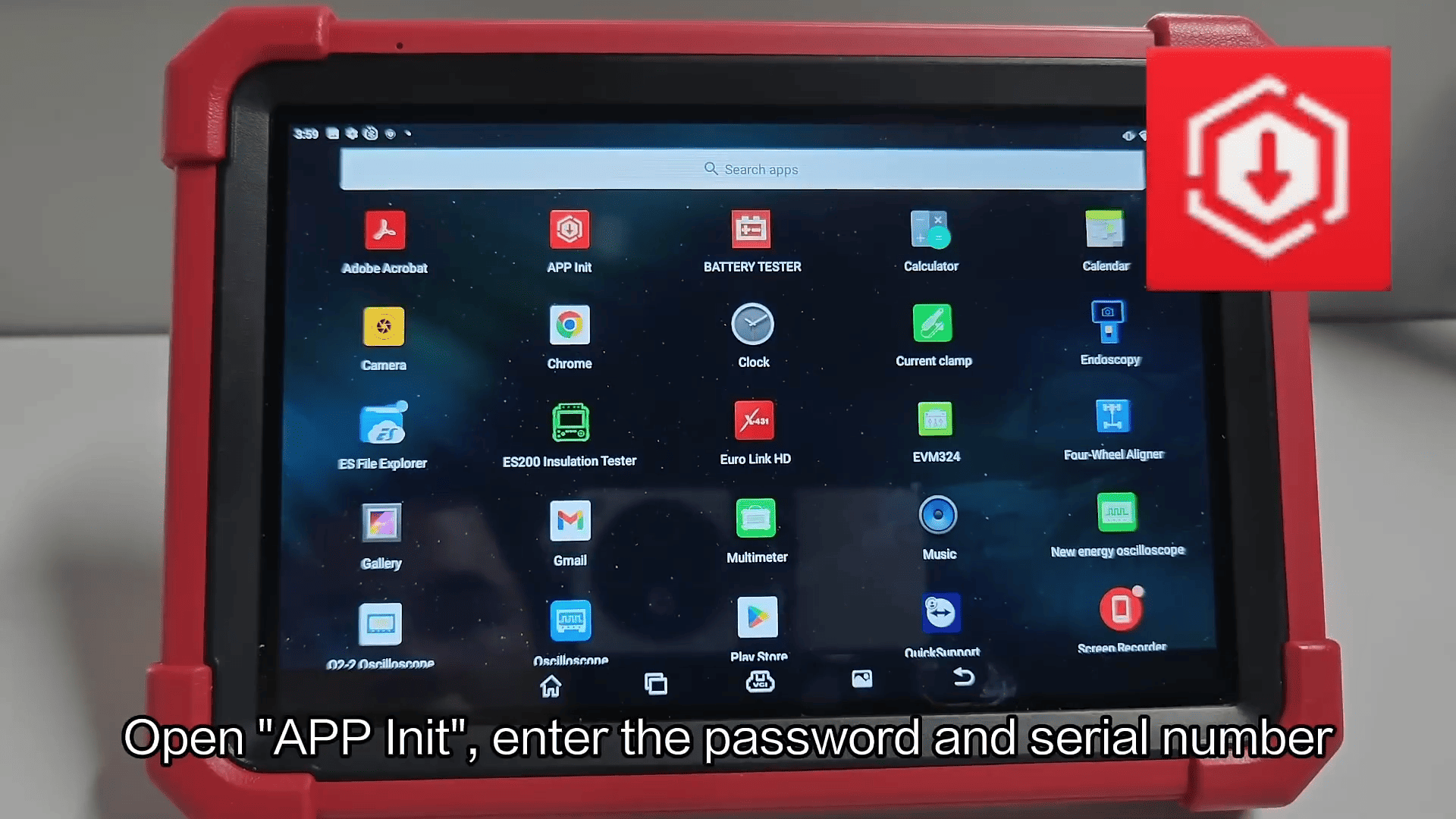
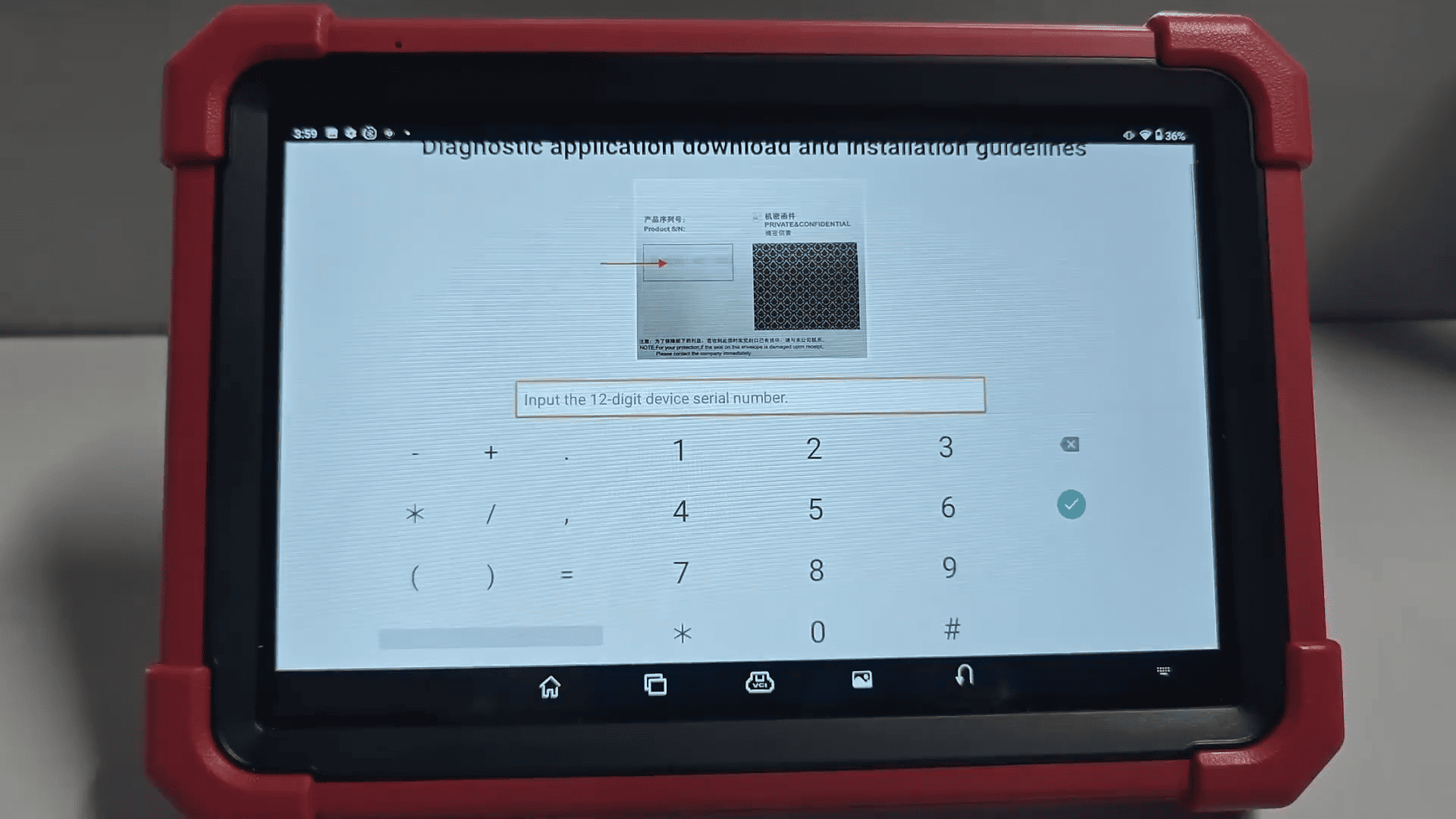
Enter the password and device serial number
Step 4 – Download the App
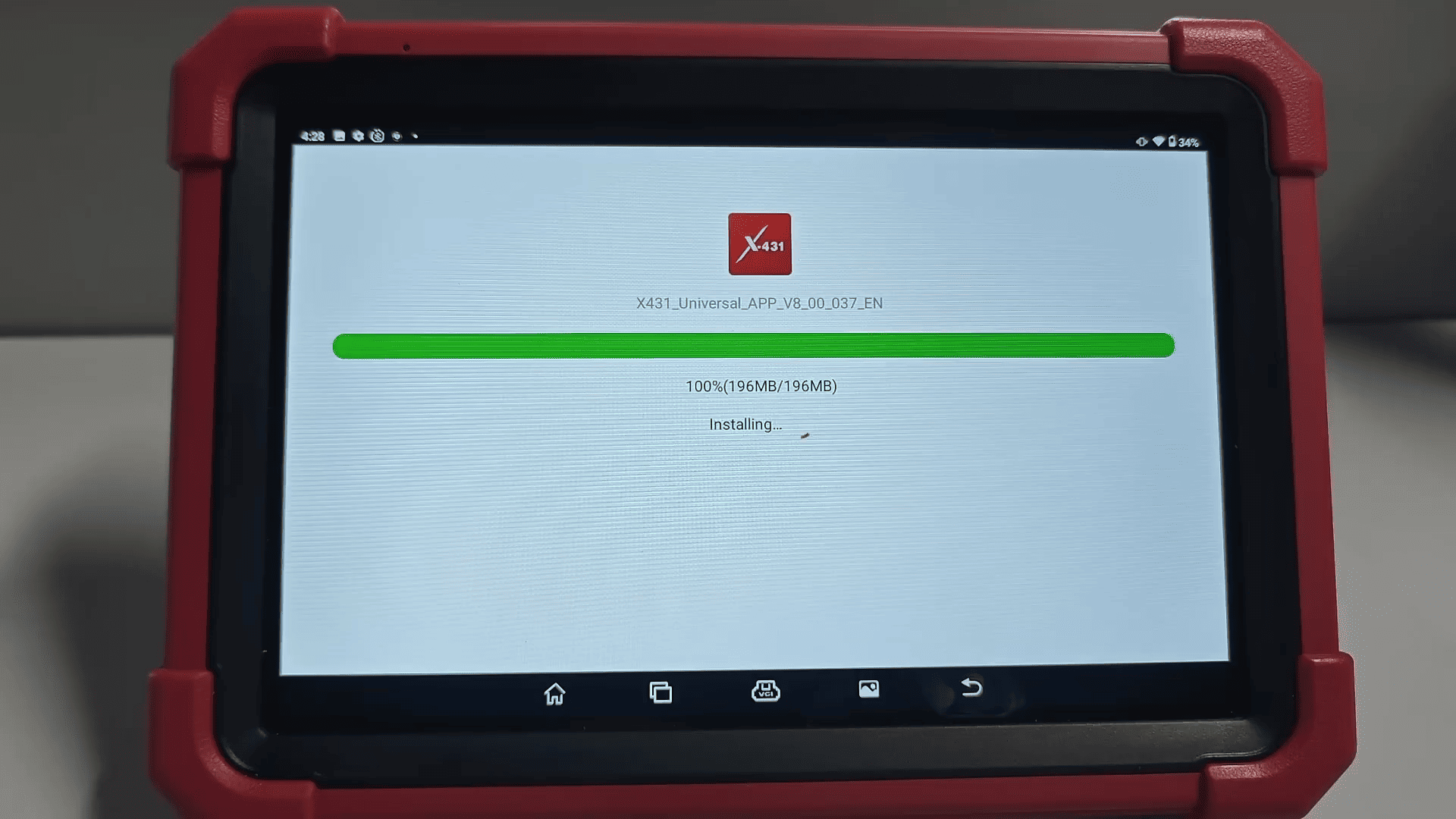
Click OK to start downloading the application
Wait until the download is completed
Step 5 – Reinstall and Activate
Open the newly installed app
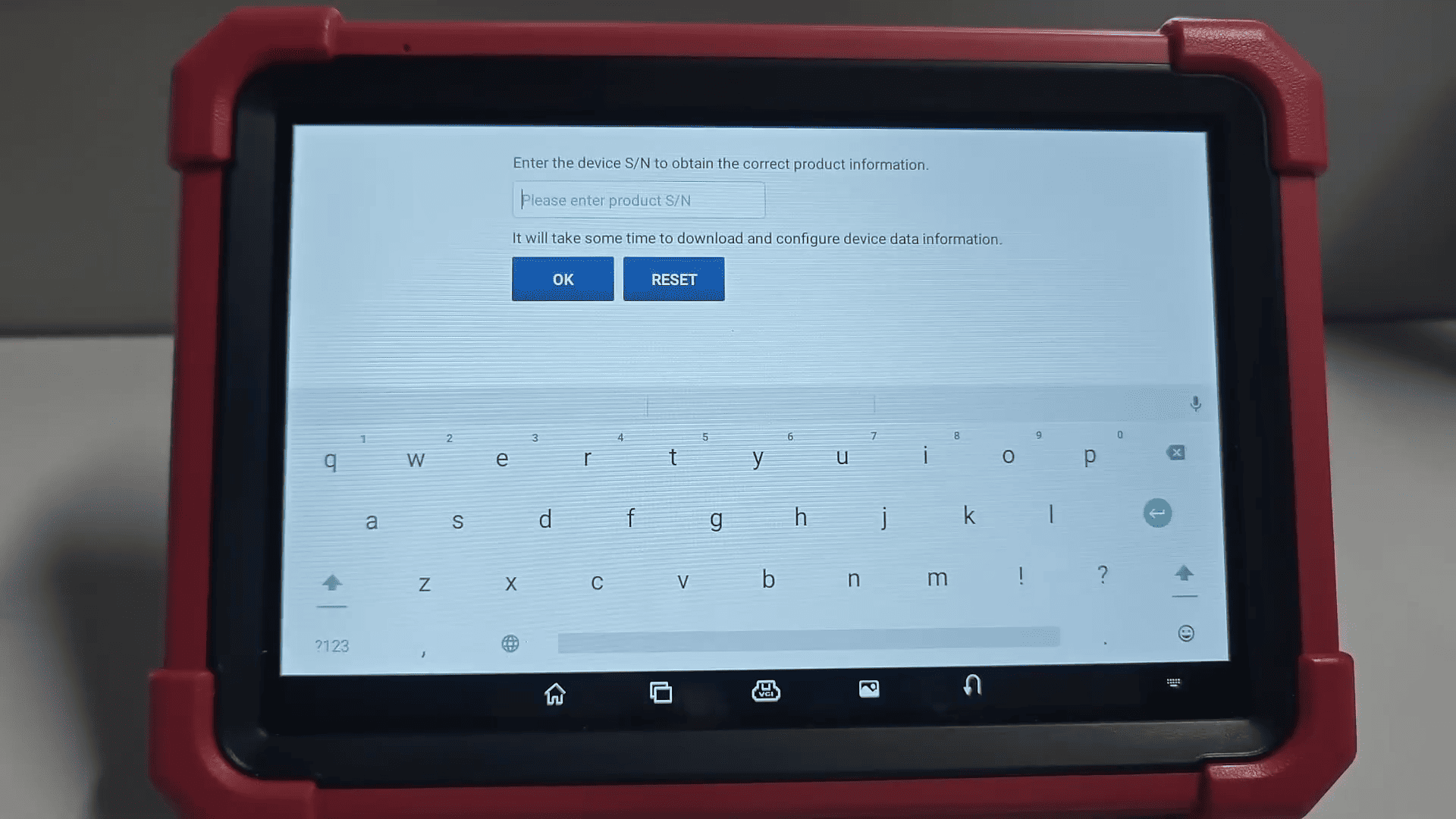
Enter the device serial number to confirm activation
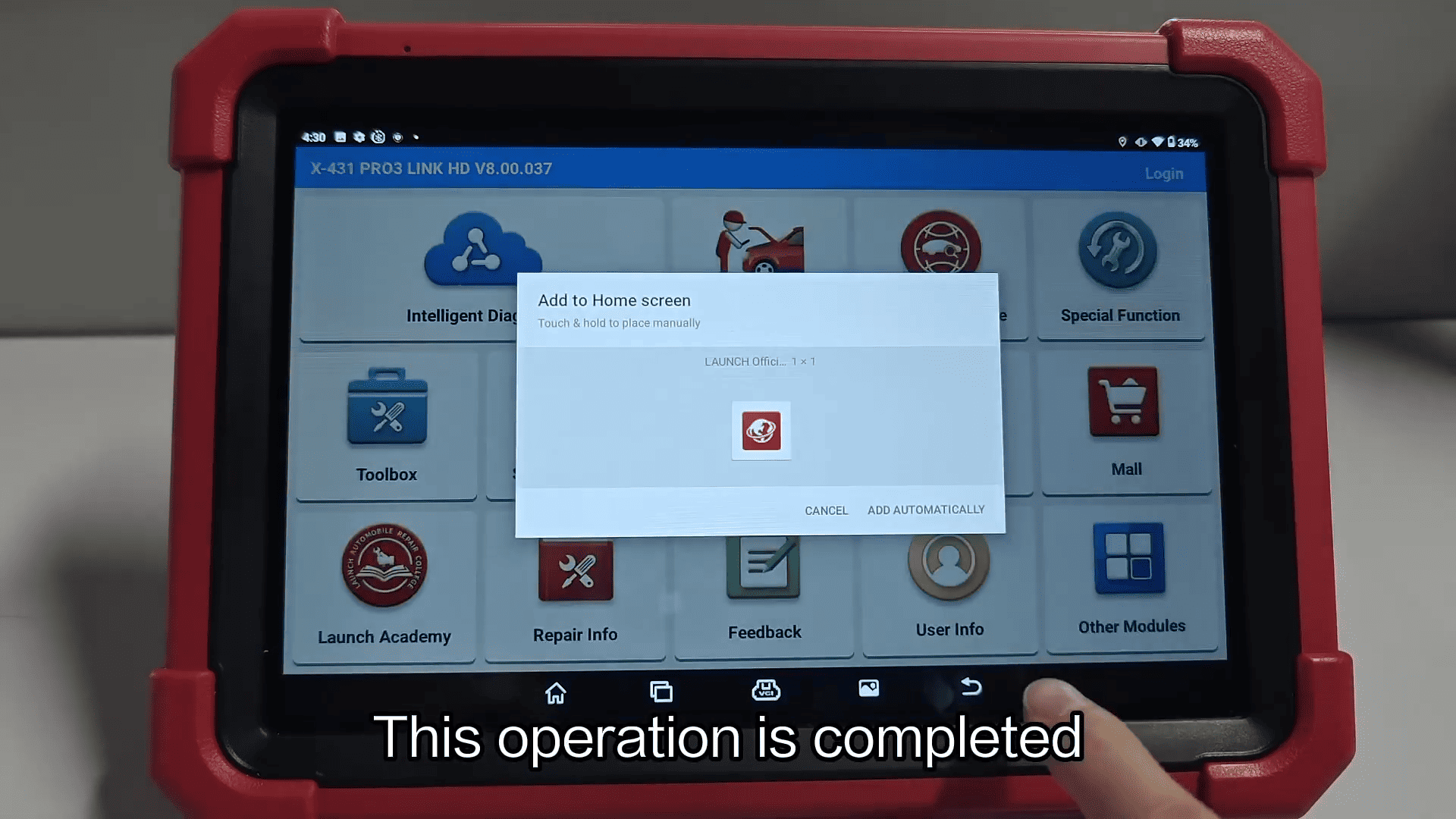
Using APP Init on LAUNCH X431 PAD V ELITE is the most effective way to fix accidental app deletion or installation issues.
By following these simple steps, you can quickly restore your apps and keep your diagnostic tool running smoothly.