
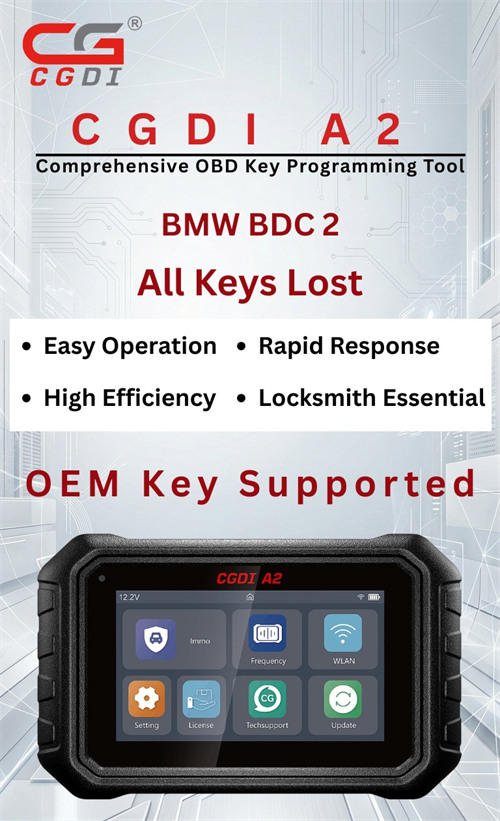
CGDI has rolled out a major complimentary software update for CGDI A2 key programmer. Technicians can now successfully program keys for BMW G-series vehicles equipped with BDC02 (BDC2) immobilizer systems in All Keys Lost (AKL) scenarios.
Below is a comprehensive, step-by-step bench guide detailing the hardware requirements, preparation, and software workflow to complete the job safely.
What do you need?
- CGDI A2 programmer (Updated to the latest version)
- CG FC200 ECU programmer (or any compatible programmer to read ISN/D-Flash)
- CGDI BMW BDC2 Solder-free Adapter
- A brand-new, original or high-quality aftermarket BMW G-series proxy key
- Stable internet connection for online server calculations
How to do?
1. Bench Preparation
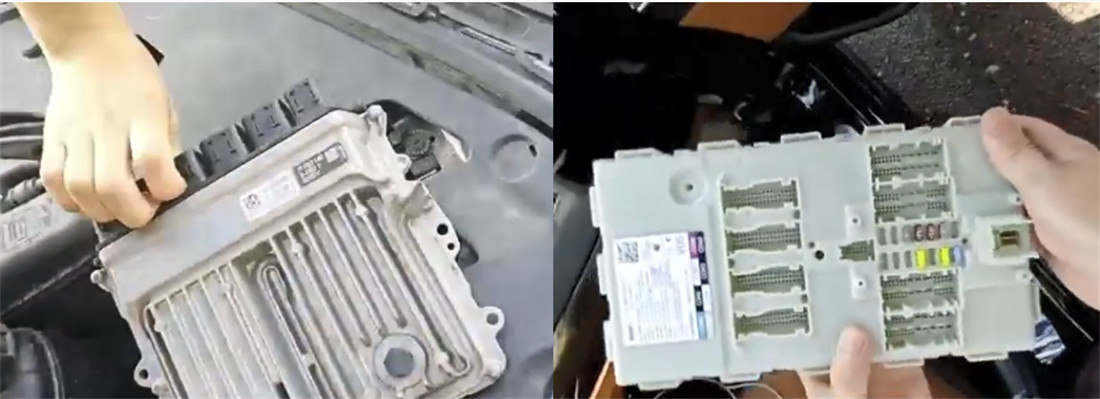
Carefully remove the engine ECU/DME module from the vehicle’s engine bay.
Remove the BDC02 (Body Domain Controller) module from the passenger-side footwell.
2. Step-by-Step Programming Procedure
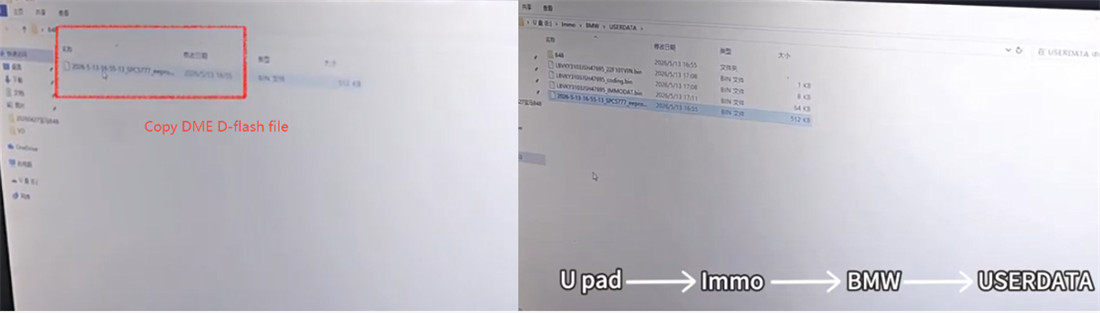
Step 1: Extract Engine DME D-Flash Data
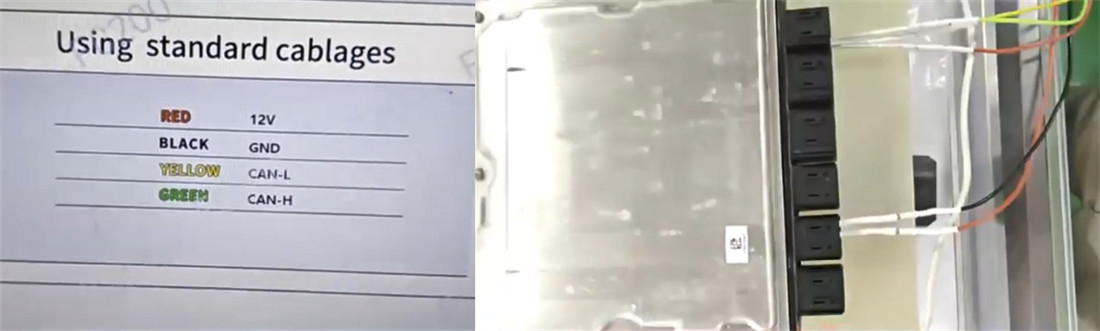
Connect your CG FC200 to the engine ECU using the appropriate bench/boot pinout. Read the D-Flash (or ISN data dump) and save the file directly to your PC desktop.
Step 2: Update CGDI A2 Software
Connect CGDI A2 to your PC via a USB cable. Open the software and click “USB upgrade” to ensure both the firmware and software are on the latest release to support G-series BDC2.
Step 3: Import DME Data into CGDI Directory
To allow CGDI software to parse the ISN calculation, copy the saved DME D-Flash file from your desktop and paste it into the following local software directory:
CGDI A2 Software Folder → Immo → BMW → USERDATA
Step 4: Hardware Assembly & Bench Setup
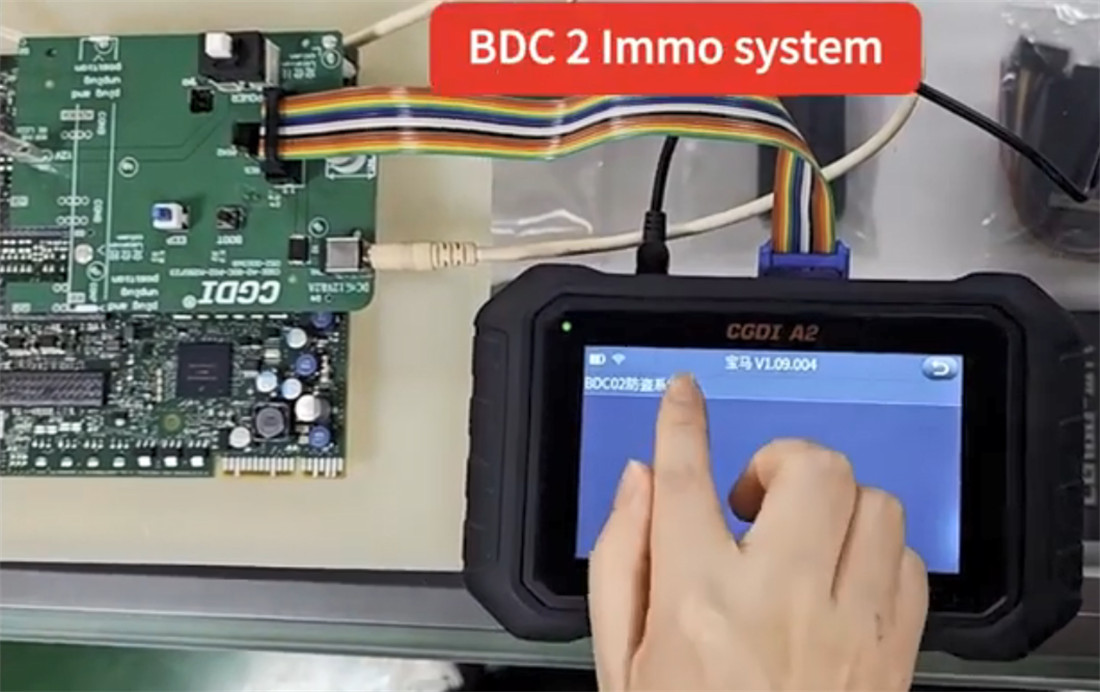
Connect the BMW BDC02 module, CGDI BDC2 adapter, and CGDI A2 unit together on your workbench
Step 5: System Pre-Processing
Launch CGDI A2 software and navigate to:
BMW → By system → BDC2 Immo system → All keys lost
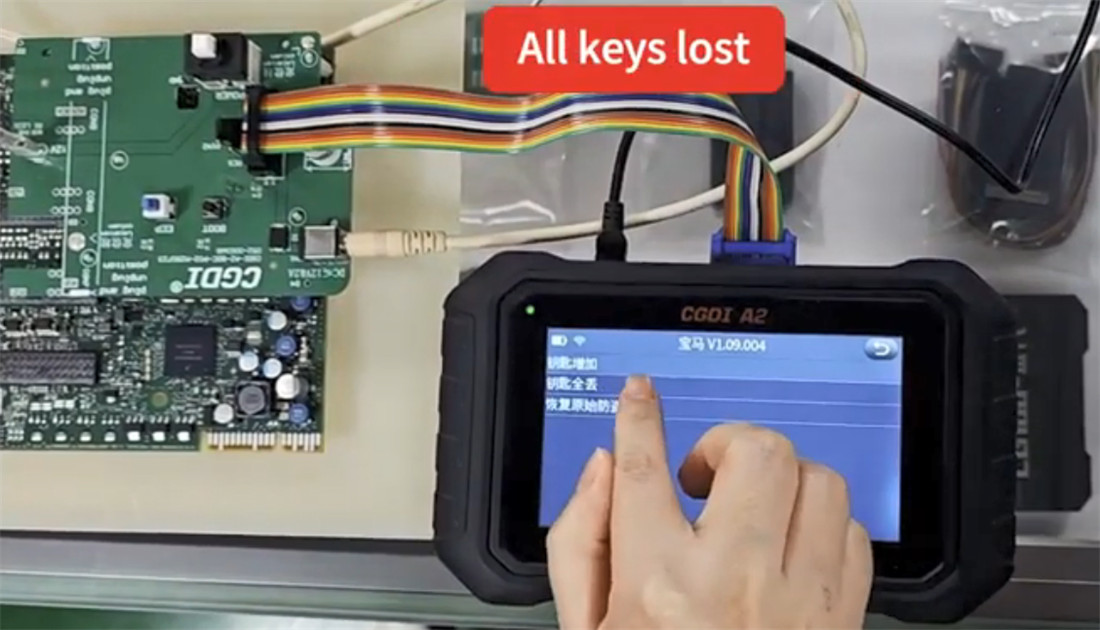
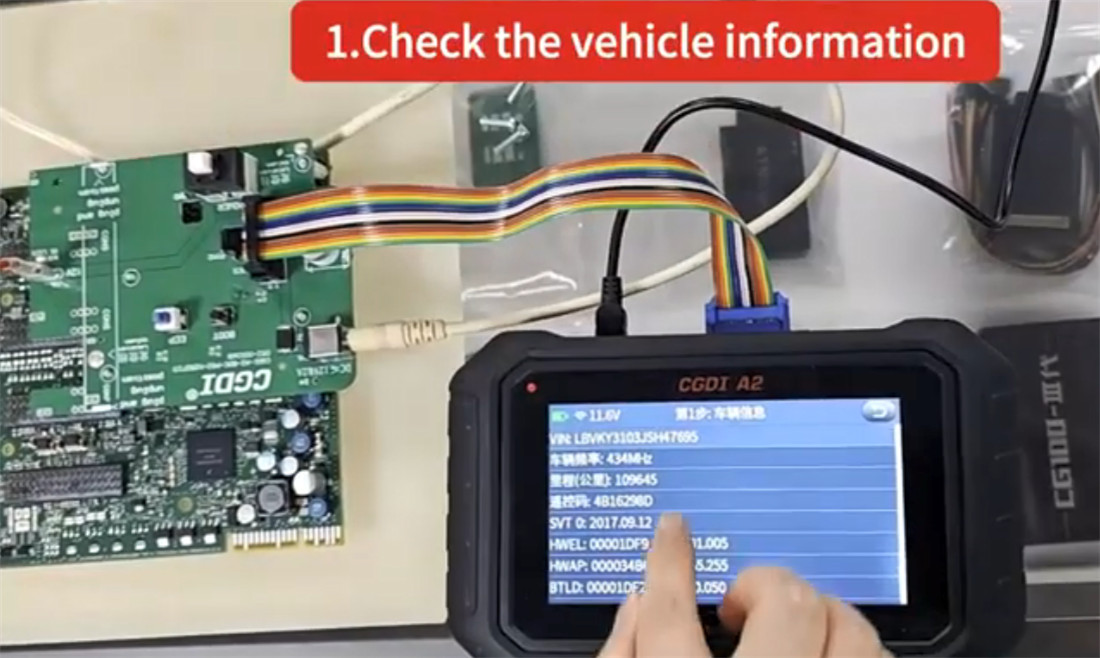
Turn on your bench power supply and execute the following on-screen prompts in exact sequence:
Check Vehicle Information: Verify connection stability.
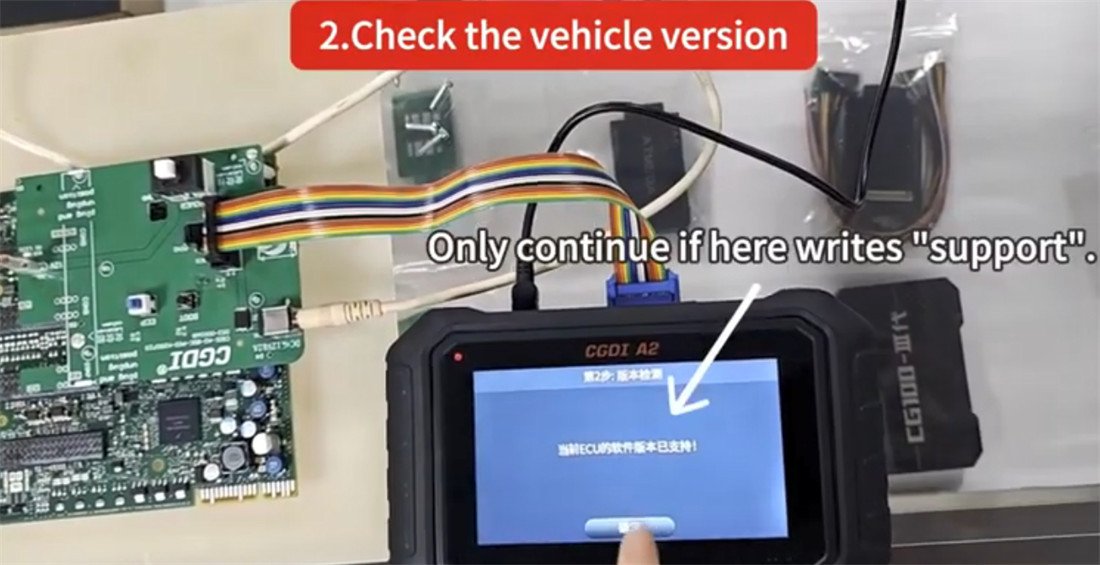
Verify Vehicle Version: Ensure the BDC flash version is supported.
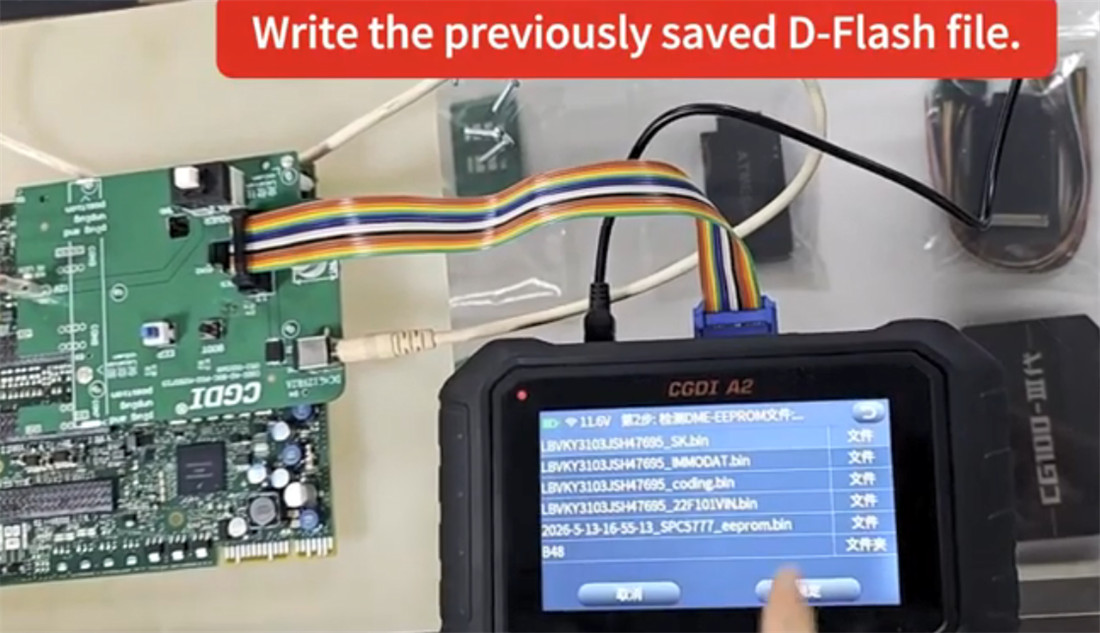
Load DME Data: Write/Load the previously saved DME D-Flash data.
Backup Coding: Back up the vehicle’s original coding data
(Crucial step to prevent coding loss).
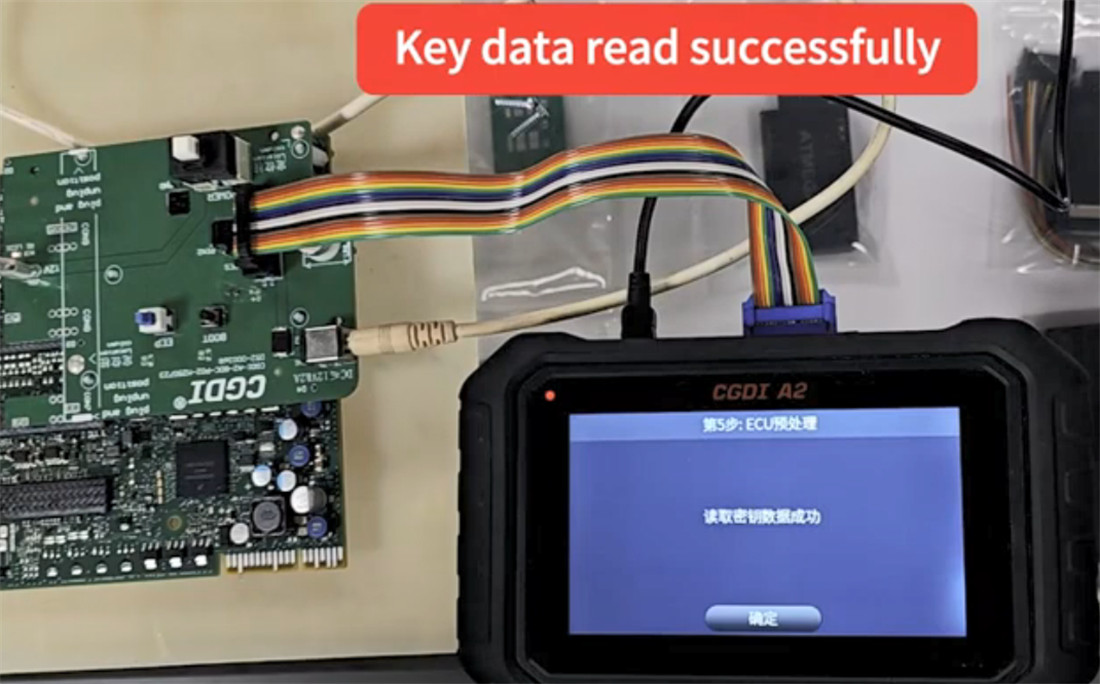
Pre-process ECU: The software will unlock and prepare the BDC module.
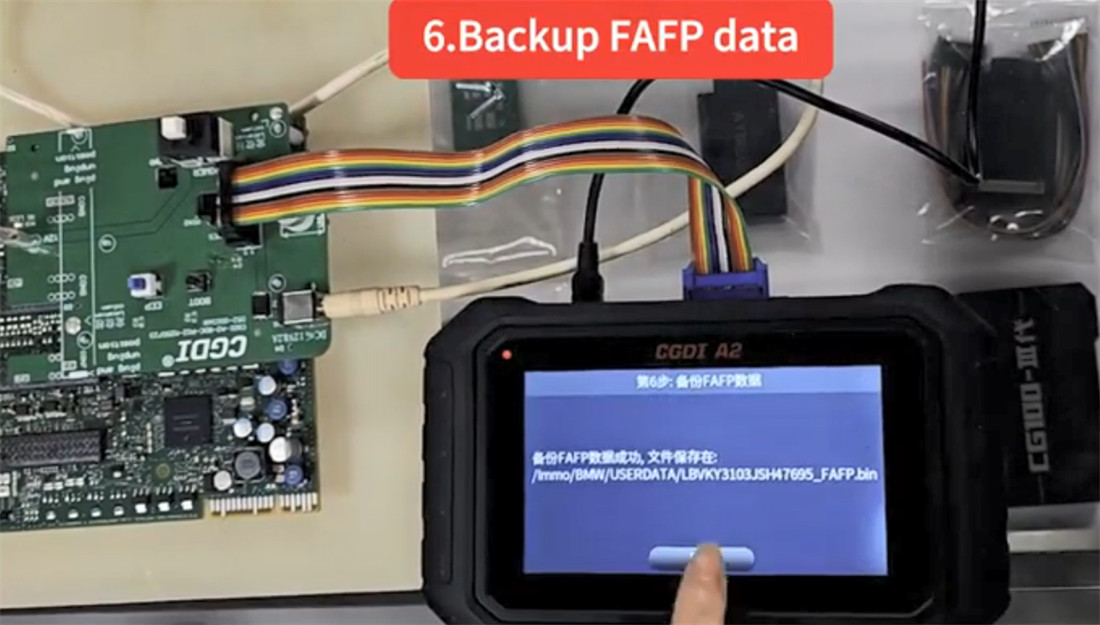
Backup FAFP: Save the FAFP coding parameters.
Write IMMO Data: Restore the immobilizer structure back to the BDC.
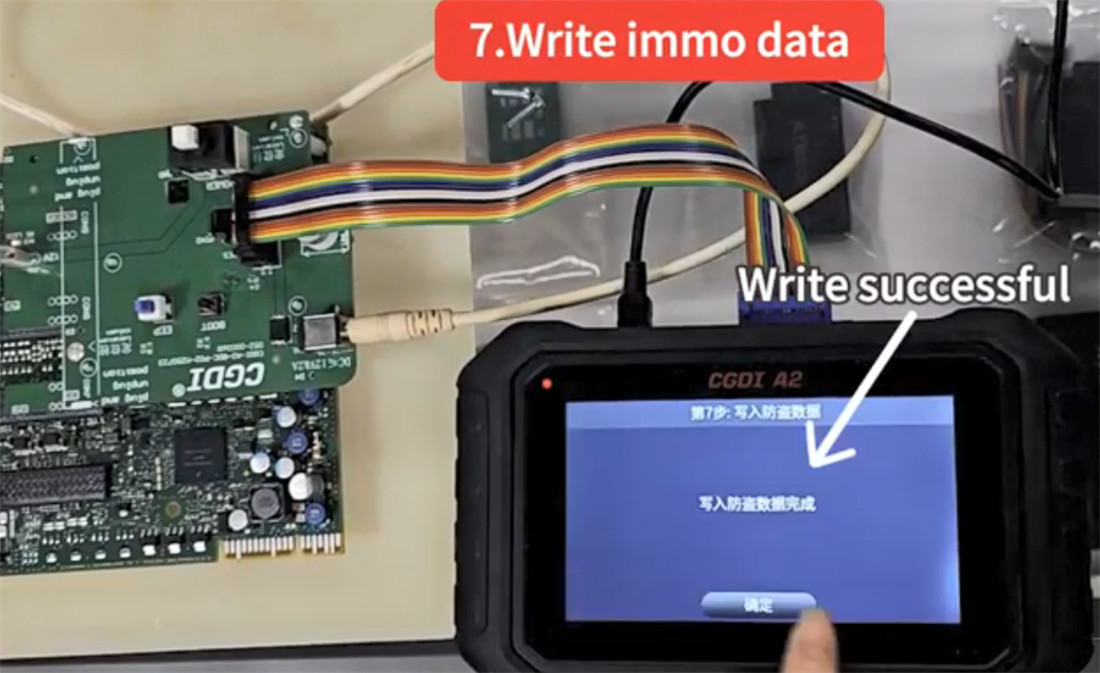
Step 6: Dealer Key Generation & Learning
Click on “Generate Dealer Key” and insert your blank key into the programmer’s slot to write the transponder data.
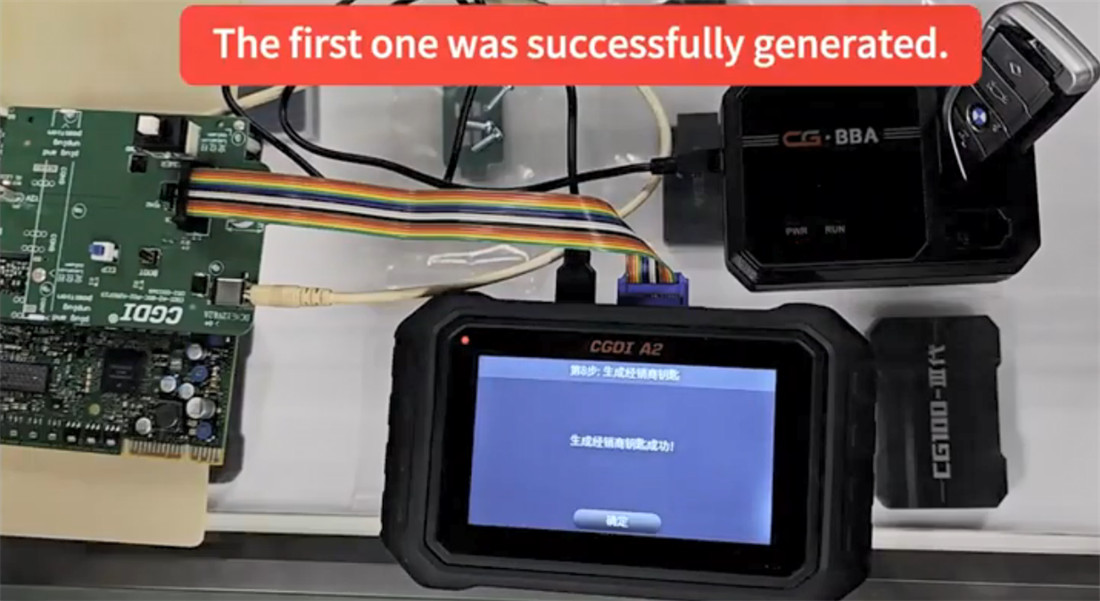
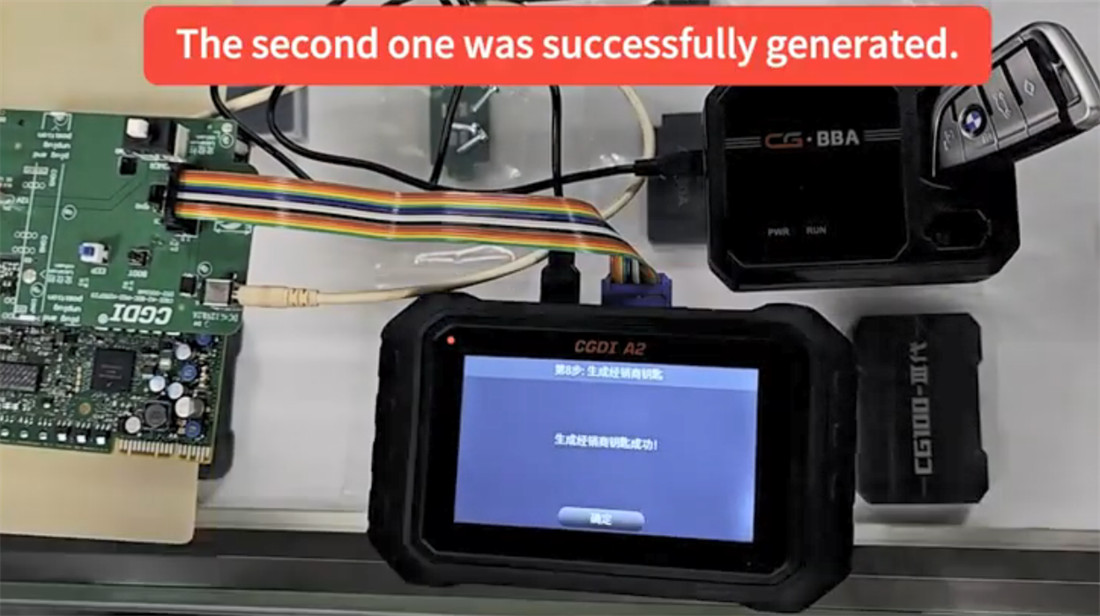
Once generated, disconnect the modules from the bench and reinstall both the engine ECU/DME and the BDC02 module back into the vehicle.
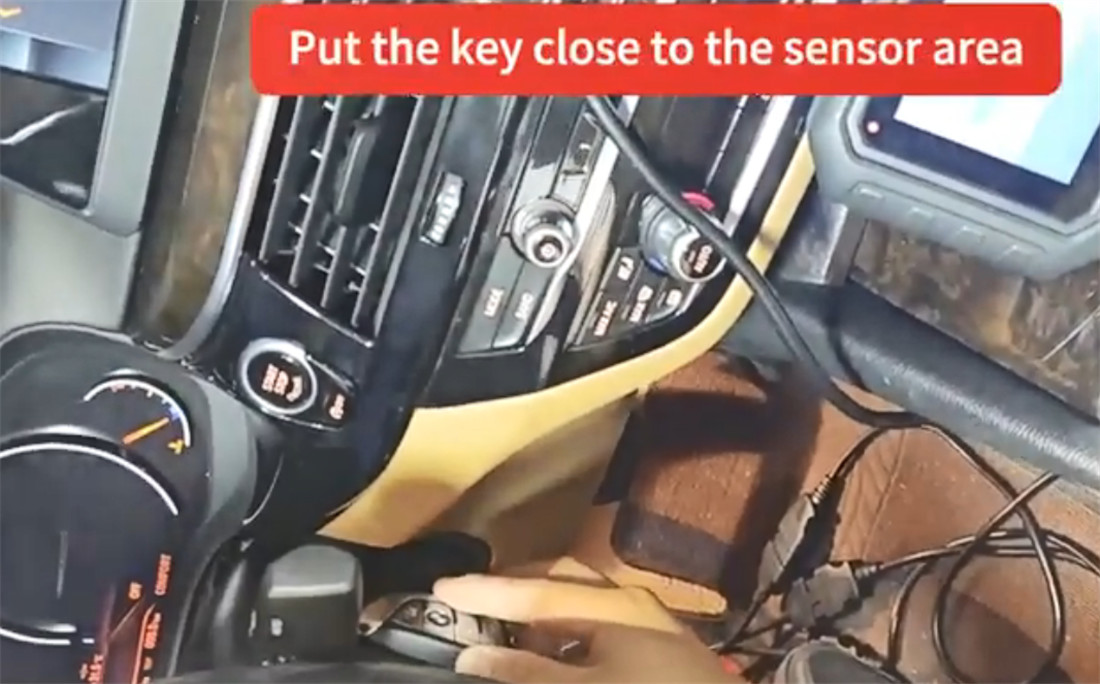
Hold the newly generated key close to the emergency start induction loop (typically located on the side of the steering column).
Follow the dashboard and instrument cluster prompts to complete the Key Learning synchronization.
Step 7: Final OBD Synchronization
Connect CGDI A2 back to the vehicle via the OBD2 port to finalize the adaptation:
Write the DME ISN code if required.
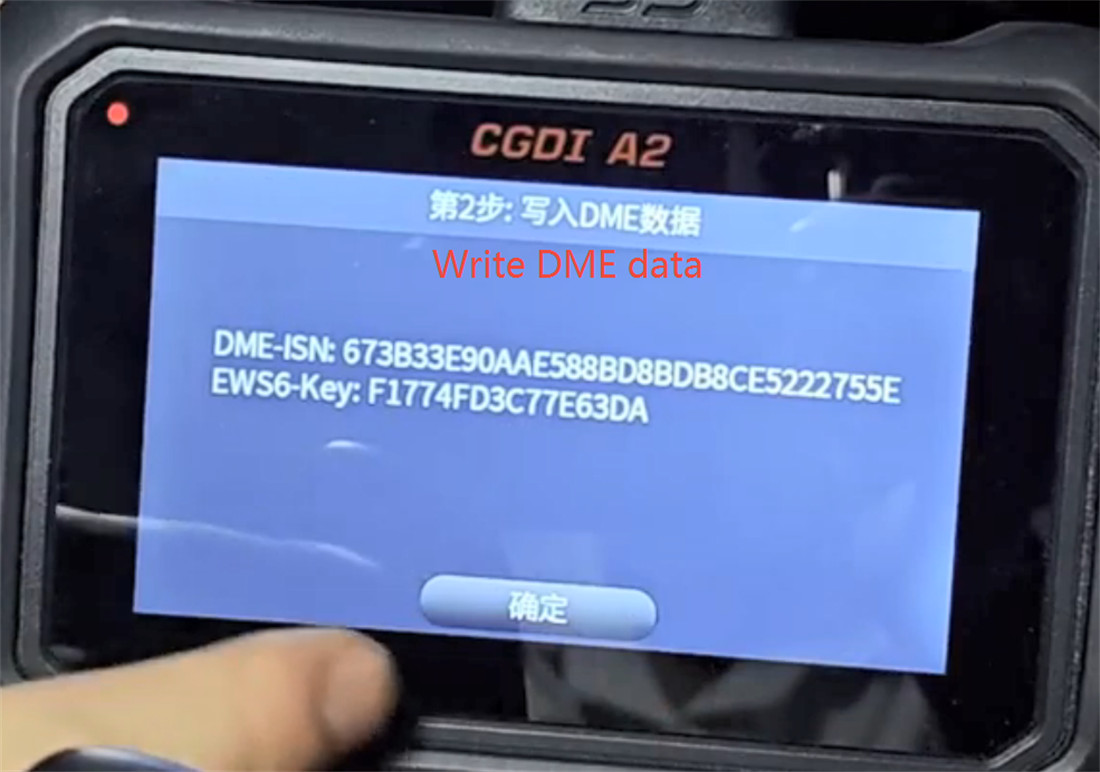
Clear the EGS (Gearbox) EWS data to ensure the transmission unlocks and allows the engine to crank.
Job Done!