

MUCAR 892BT Pro supports lifetime free software updates. In this guide, we’ll explain how to update the device, including Wi-Fi connection, firmware maintenance, system updates, and vehicle software downloads.
The update process covers three main areas: Firmware Fix, System Update, and the Upgrade Center.
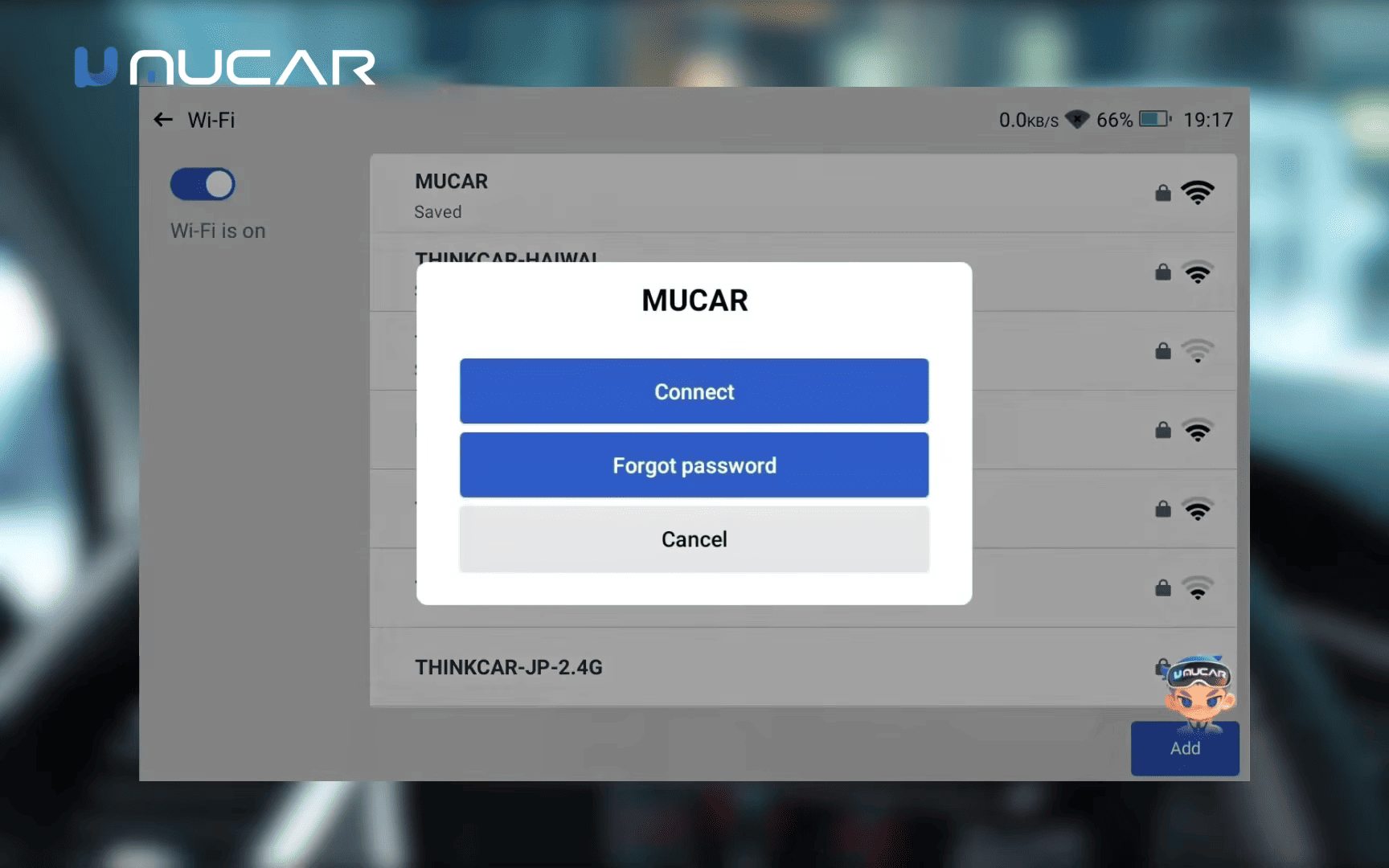
1. Connect the MUCAR Tool to Wi-Fi
An active internet connection is required to download updates. A connection to the vehicle’s diagnostic port alone is not sufficient for software downloads.
2. Firmware Fix
The Firmware Fix function provides firmware upgrade and repair options: Settings > Maintain > Firmware Fix
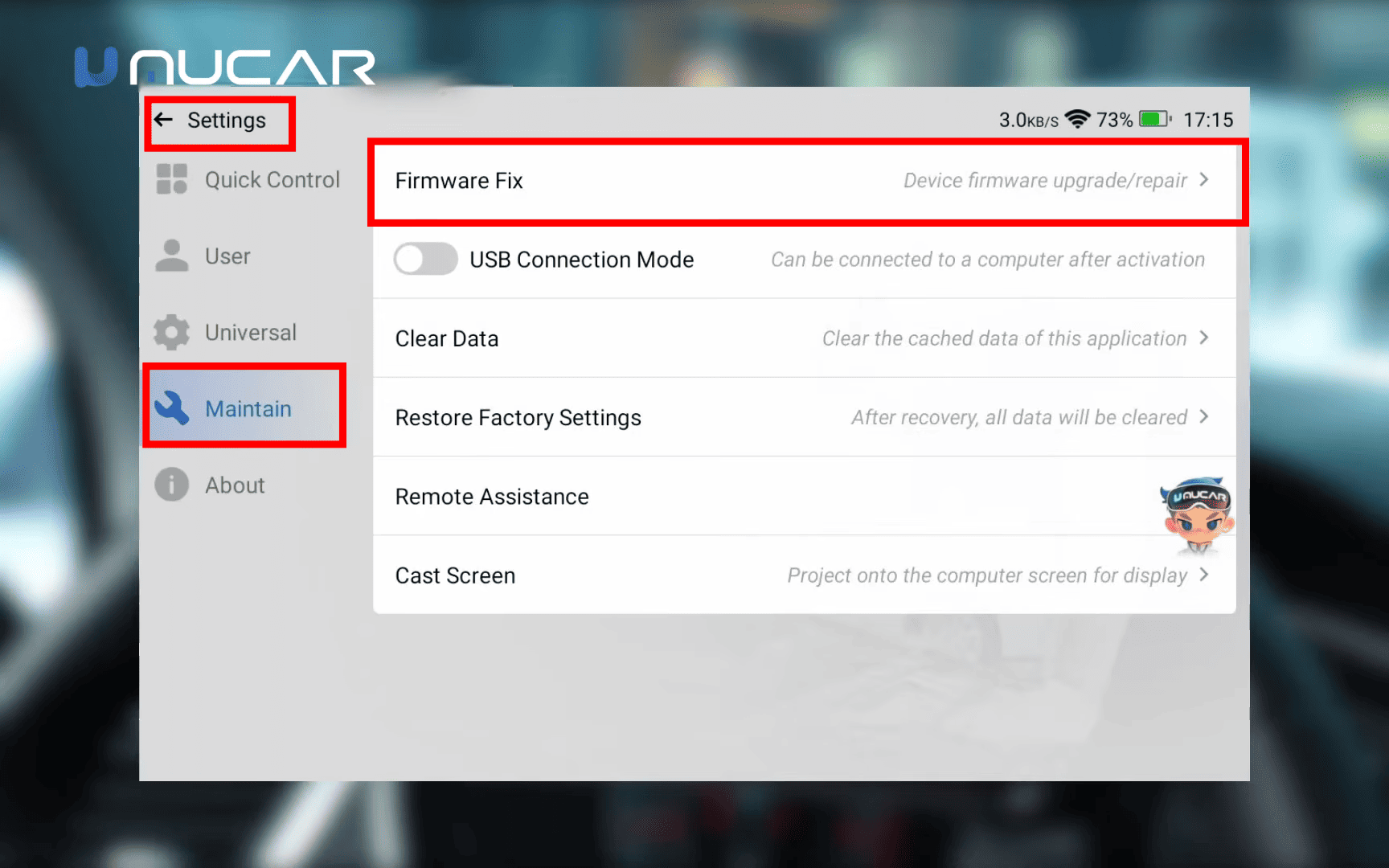
Firmware Fix and System Update serve different purposes, so they should not be confused.
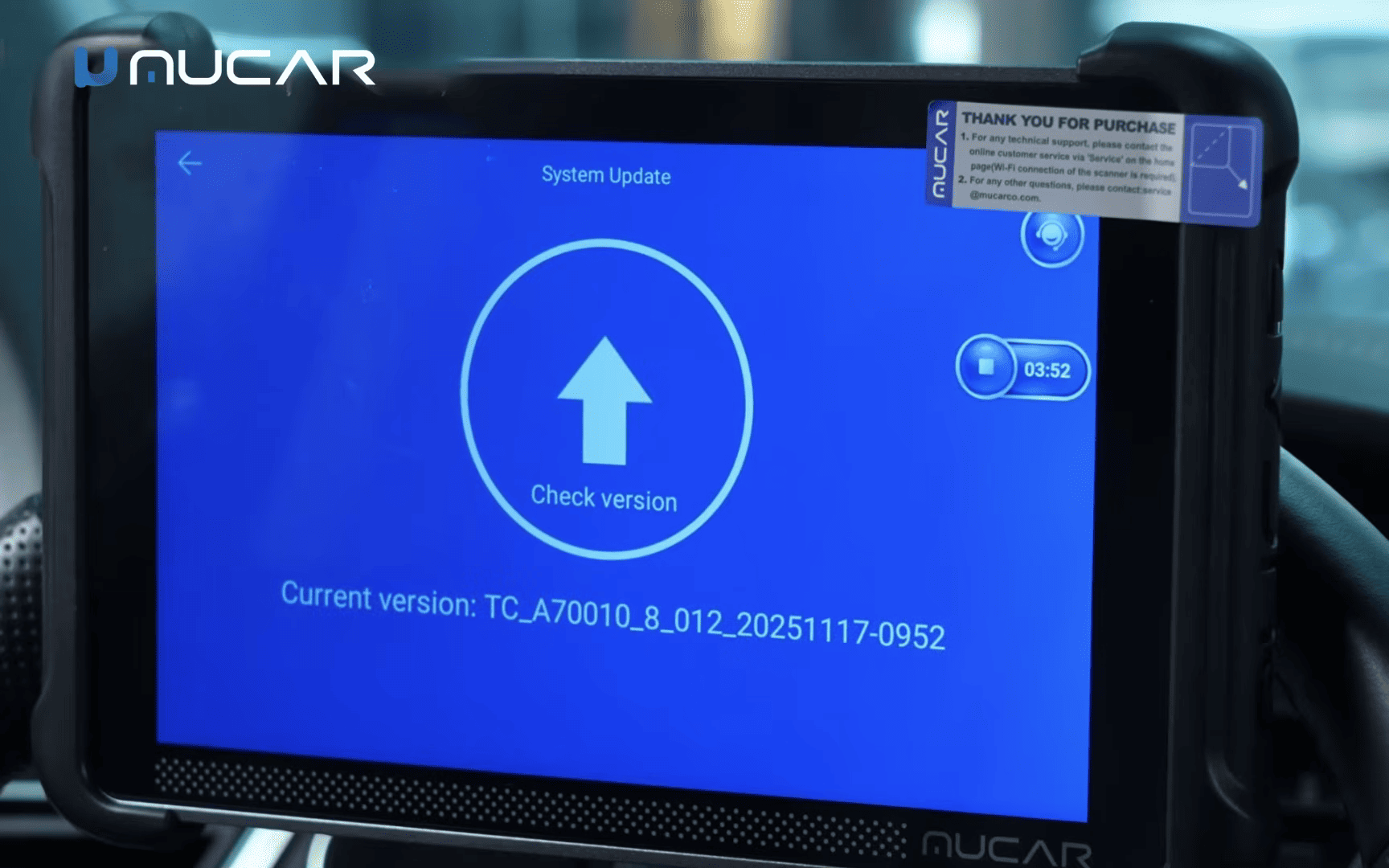
3. System Update: Install the Latest System Version
To update the device’s operating system, go to Settings > About > System Update
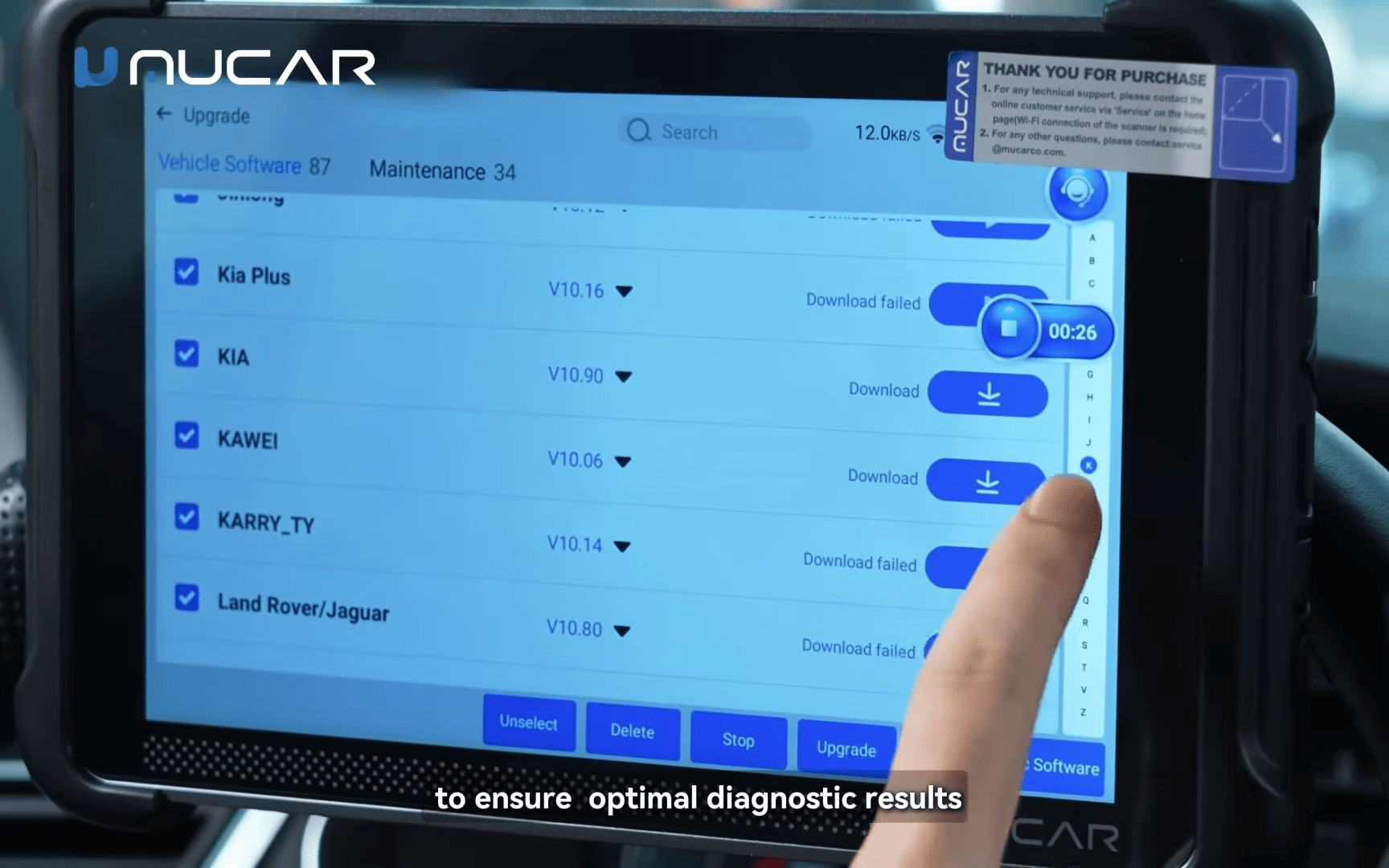
4. Upgrade Center: Download Vehicle and Maintenance Software
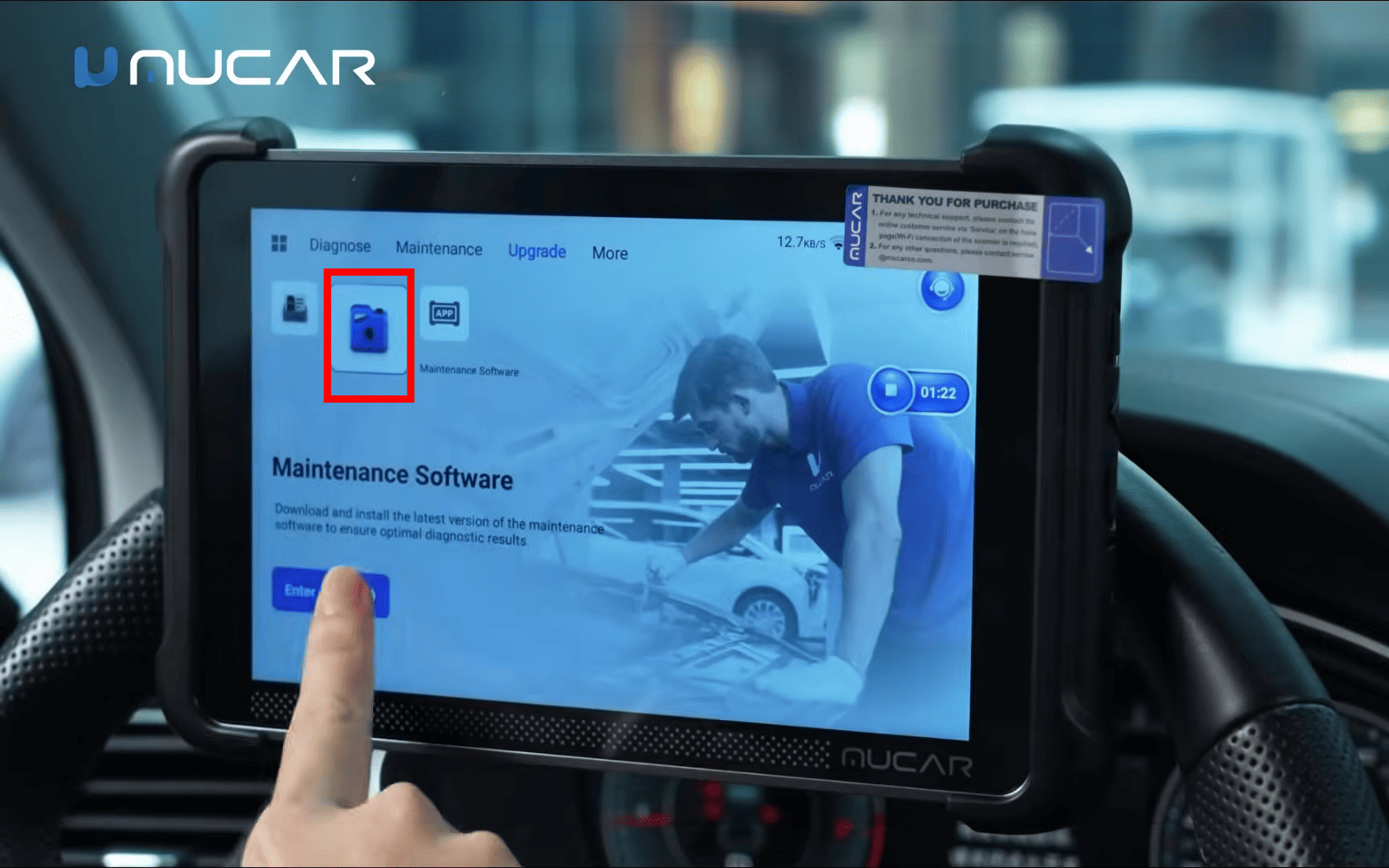
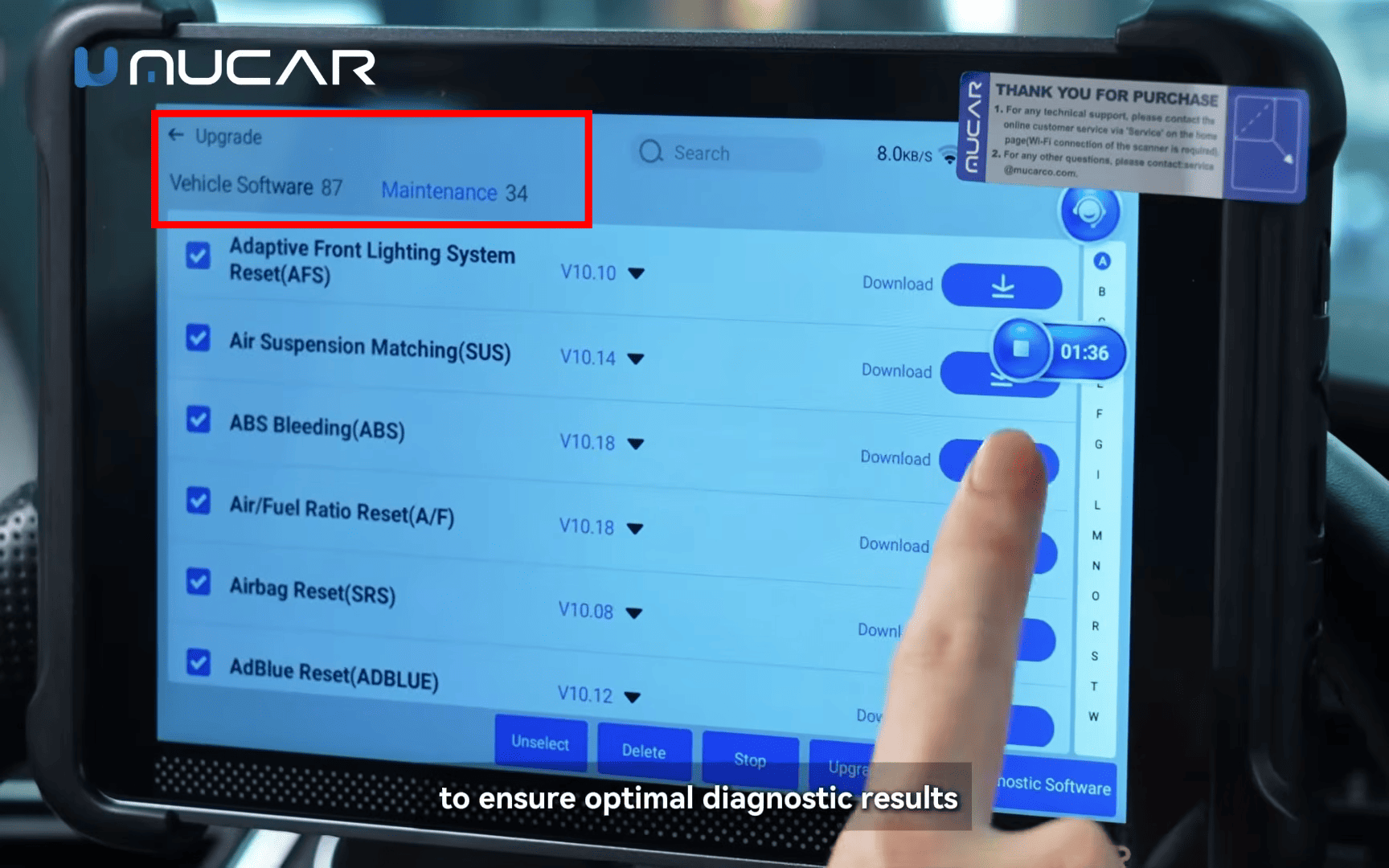
According to the update information shown for this MUCAR tool, the available software includes 87 vehicle software packages and 34 maintenance software applications
Vehicle Software
You can select multiple brands at once and start a batch download instead of downloading each package individually.
Maintenance Software
The Upgrade Center also provides various maintenance applications for specialized service tasks.
| Maintenance Function | Purpose |
|---|---|
| Gearbox Learning | Gearbox learning procedures |
| Injector Coding | Injector coding operations |
| IMMO & Key Matching | Immobilizer and key matching functions |
| ABS Bleeding | ABS bleeding procedures |
| Air Suspension Matching | Air suspension matching |
| AdBlue Reset | AdBlue-related reset functions |
Additional applications may also be available through the Upgrade Center.
Reviewing the update information and changelogs also helps you understand what has changed in each release.
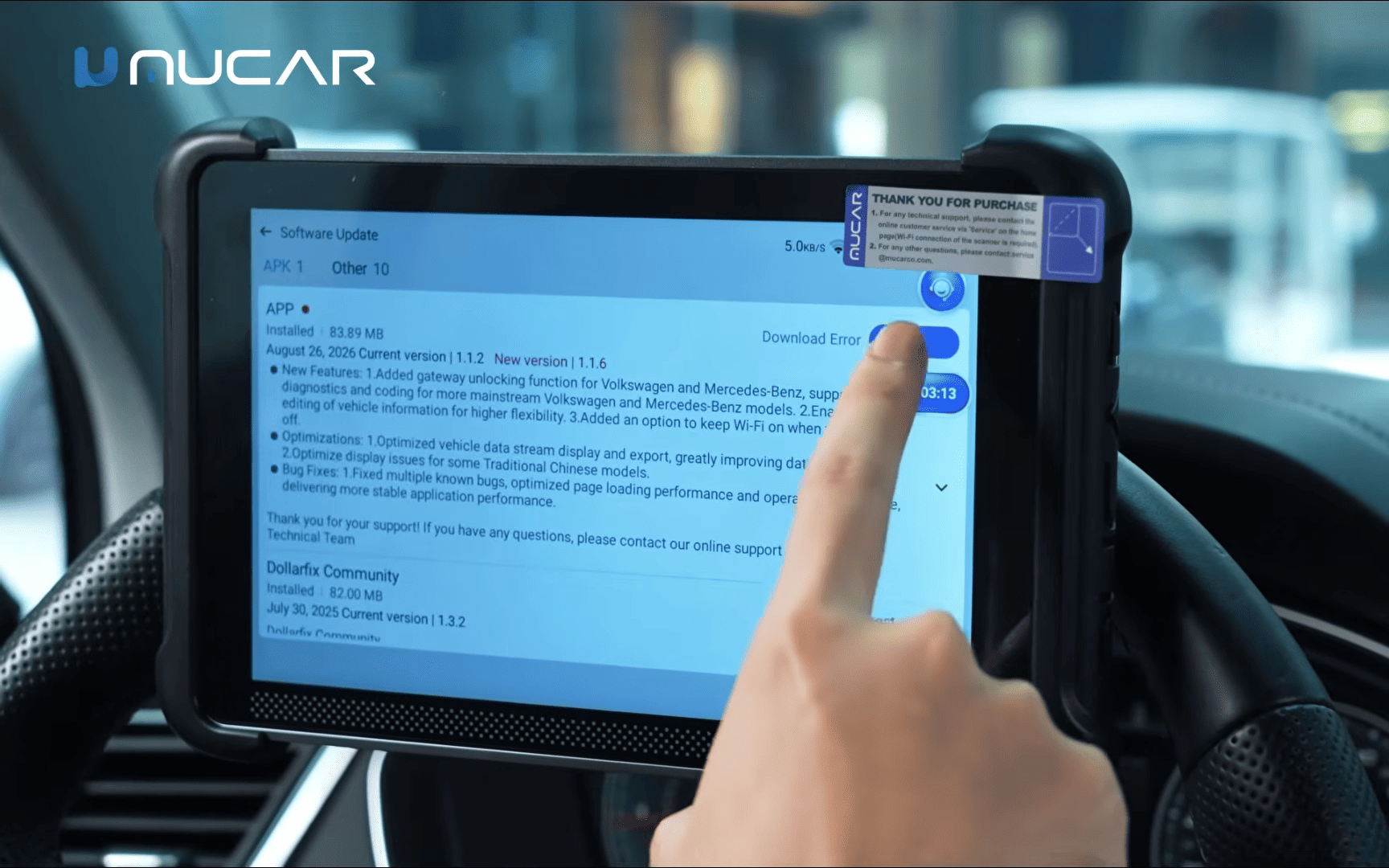
5. MUCAR Update: Frequently Asked Questions
Q1: Do I need Wi-Fi to update my MUCAR diagnostic tool?
Yes. Connect the device to a stable Wi-Fi network before downloading updates. A vehicle diagnostic connection does not replace the internet connection required for downloads.
Q2: What’s the difference between Firmware Fix and System Update?
System Update installs the latest available system version. Firmware Fix provides firmware upgrade and repair options, along with USB connection mode, remote assistance, and screen casting.
Q3: How often should I update vehicle software?
Check the Upgrade Center regularly, especially when you start working with new vehicle brands or need additional diagnostic functions. A monthly check is a practical way to keep track of available updates.
Q4: Can I download several vehicle brands at once?
Yes. Select multiple vehicle software packages and start a batch download. The device will handle the download queue.
Q5: Does this update procedure apply to all MUCAR tablets?
The tutorial demonstrates the standard MUCAR settings structure. Menu names and available options may vary slightly depending on the device model and firmware version.