


TOPDON BT600 supports QR code sharing, allowing users to scan and retrieve battery test results easily. To access this feature, you need to update the device firmware through the TOPDON PC Suite software.
Note: BT600 devices manufactured after 2025 use a USB-C port instead of Mini USB. Earlier devices may use Mini USB. Please prepare the correct data cable for your device.
How to Update TOPDON BT600 Firmware
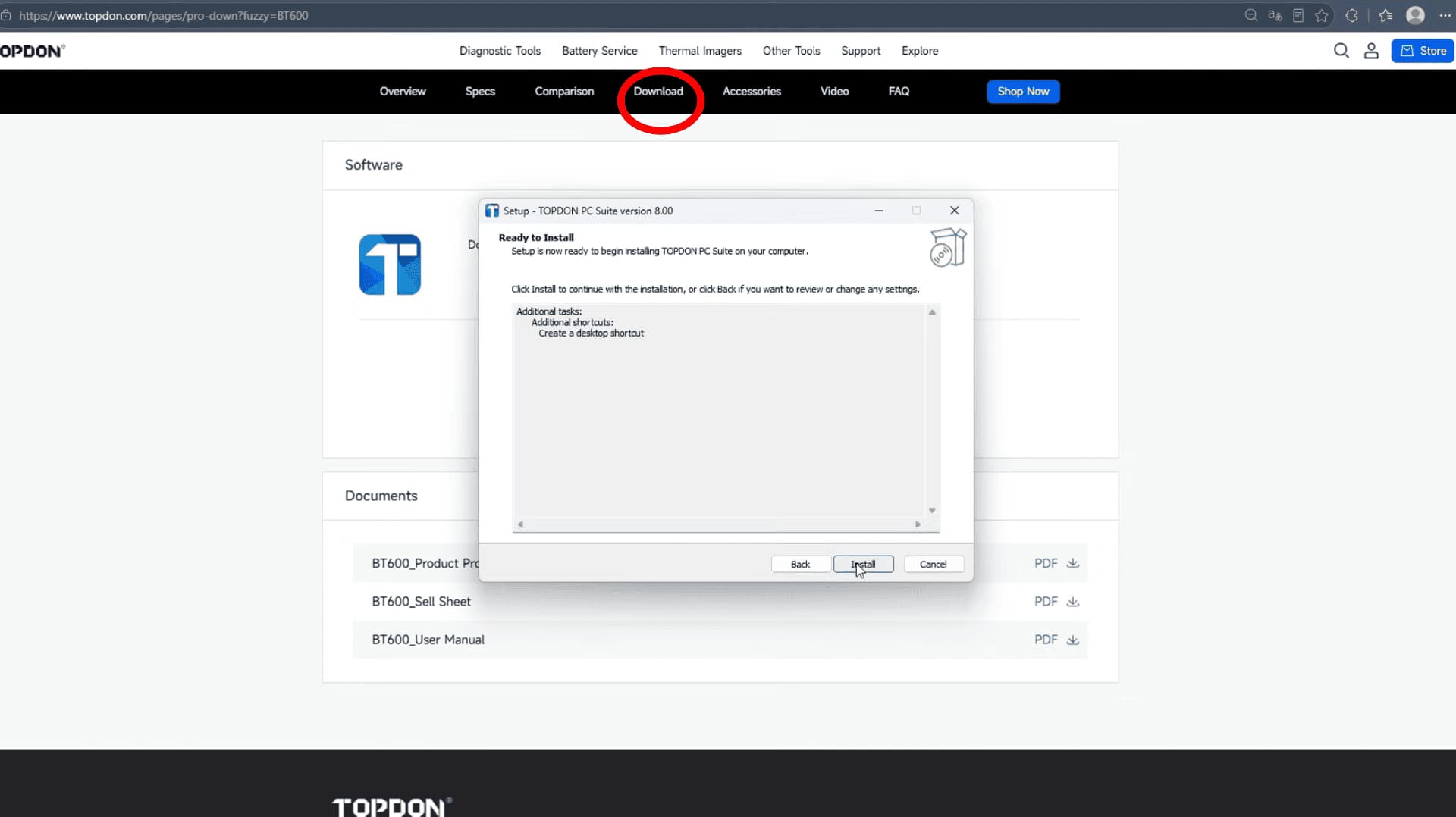
1. Download the PC Suite Software
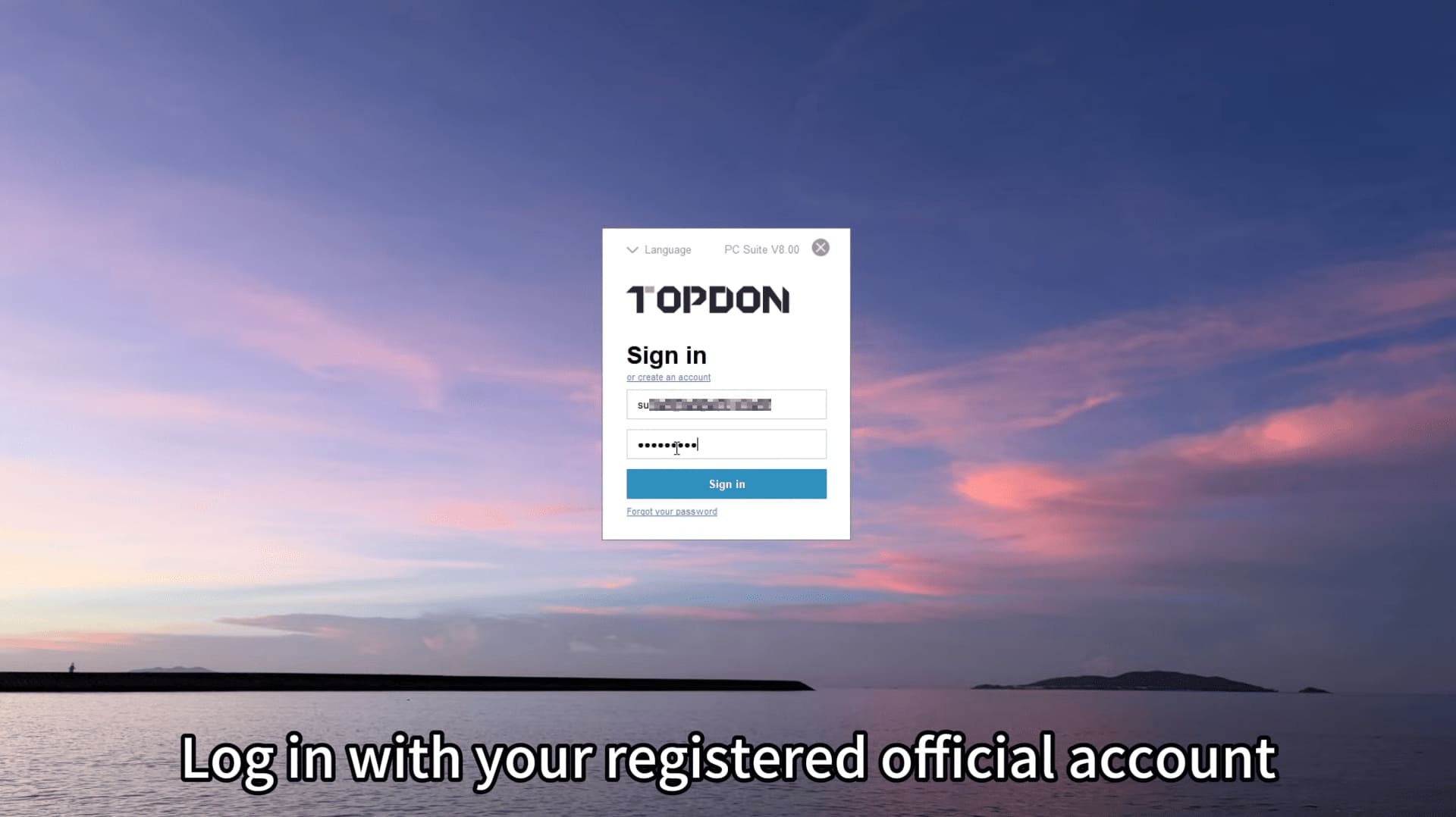
Visit the official TOPDON website at [TOPDON.COM](https://www.topdon.com/) and download the BT600 update software. Then open the PC Suite software and log in using your registered TOPDON account.
2. Connect the BT600 to Your PC
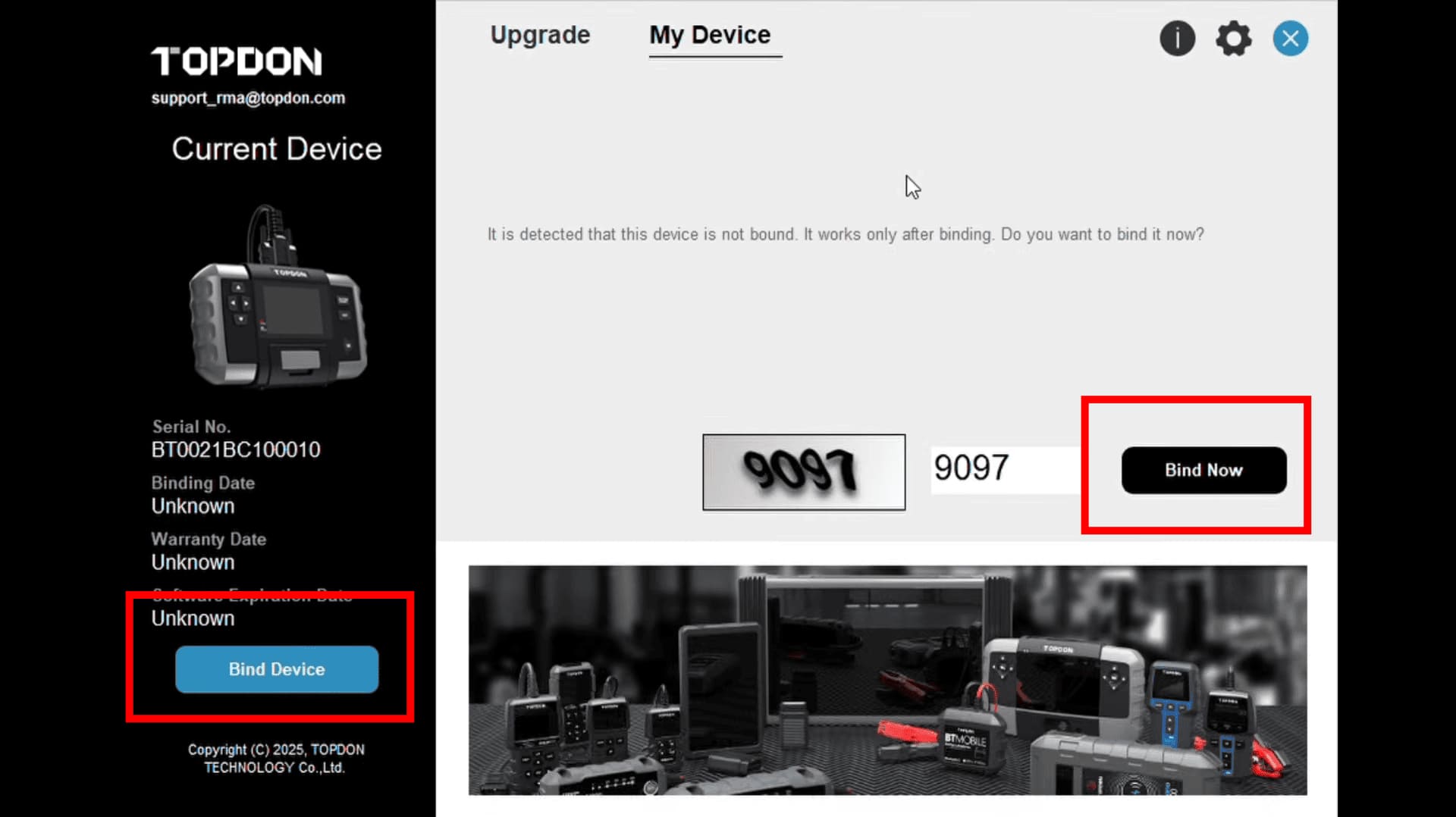
Connect BT600 to your computer using the appropriate USB data cable. Click Bind Device if the BT600 has not been bound to your account (If your device is already bound, you can skip this step).
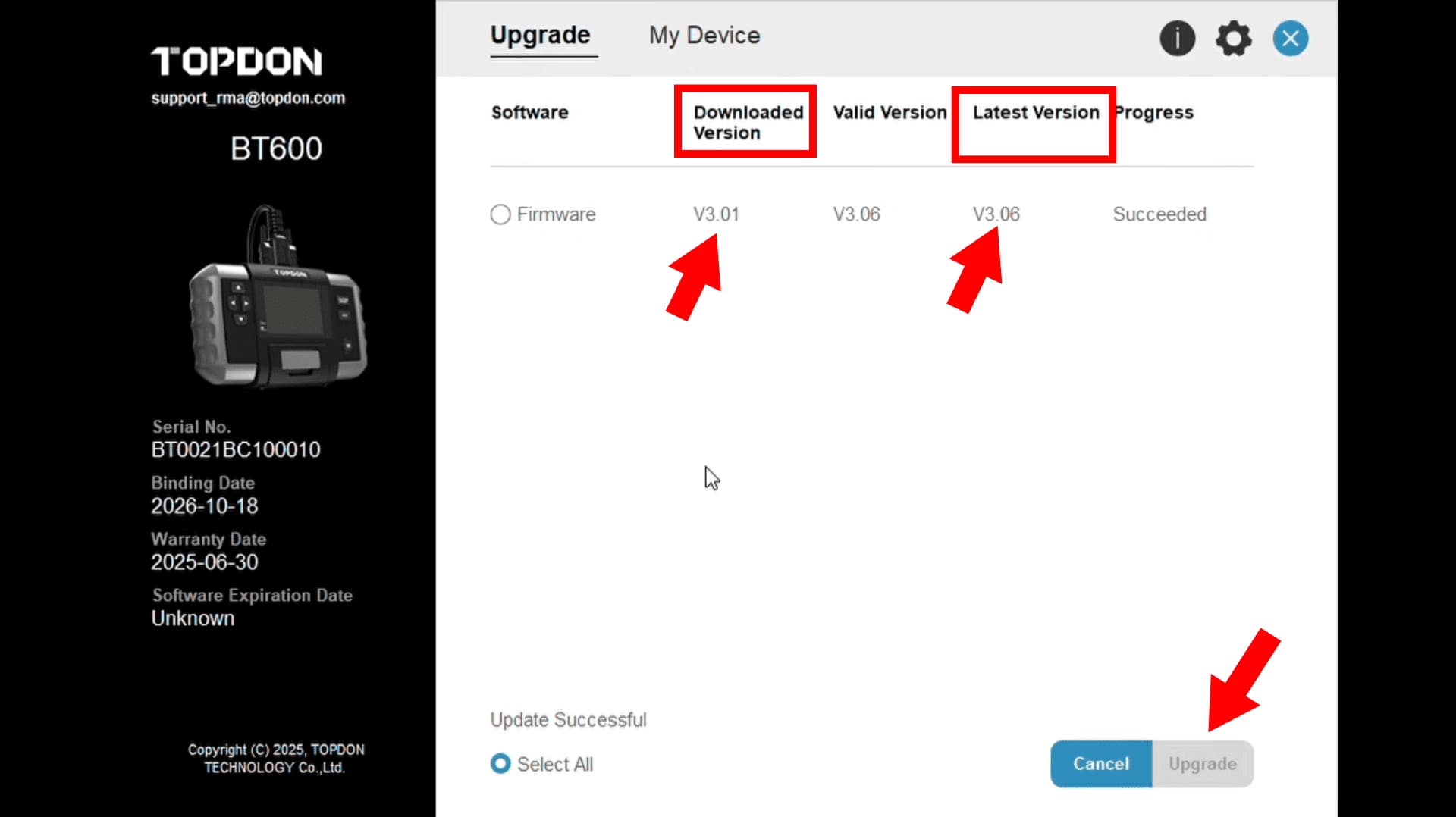
3. Check the Firmware Version
The software displays the current device version and the latest available firmware version.
Click Upgrade to start the update and wait for the Update to Complete
How to Use the QR Code Sharing Feature
1). Connect BT600 battery tester to the battery and start the battery testing procedure.
2). Select the appropriate values according to the battery type
(BATTERY TEST ->> AGM ->> CCA).
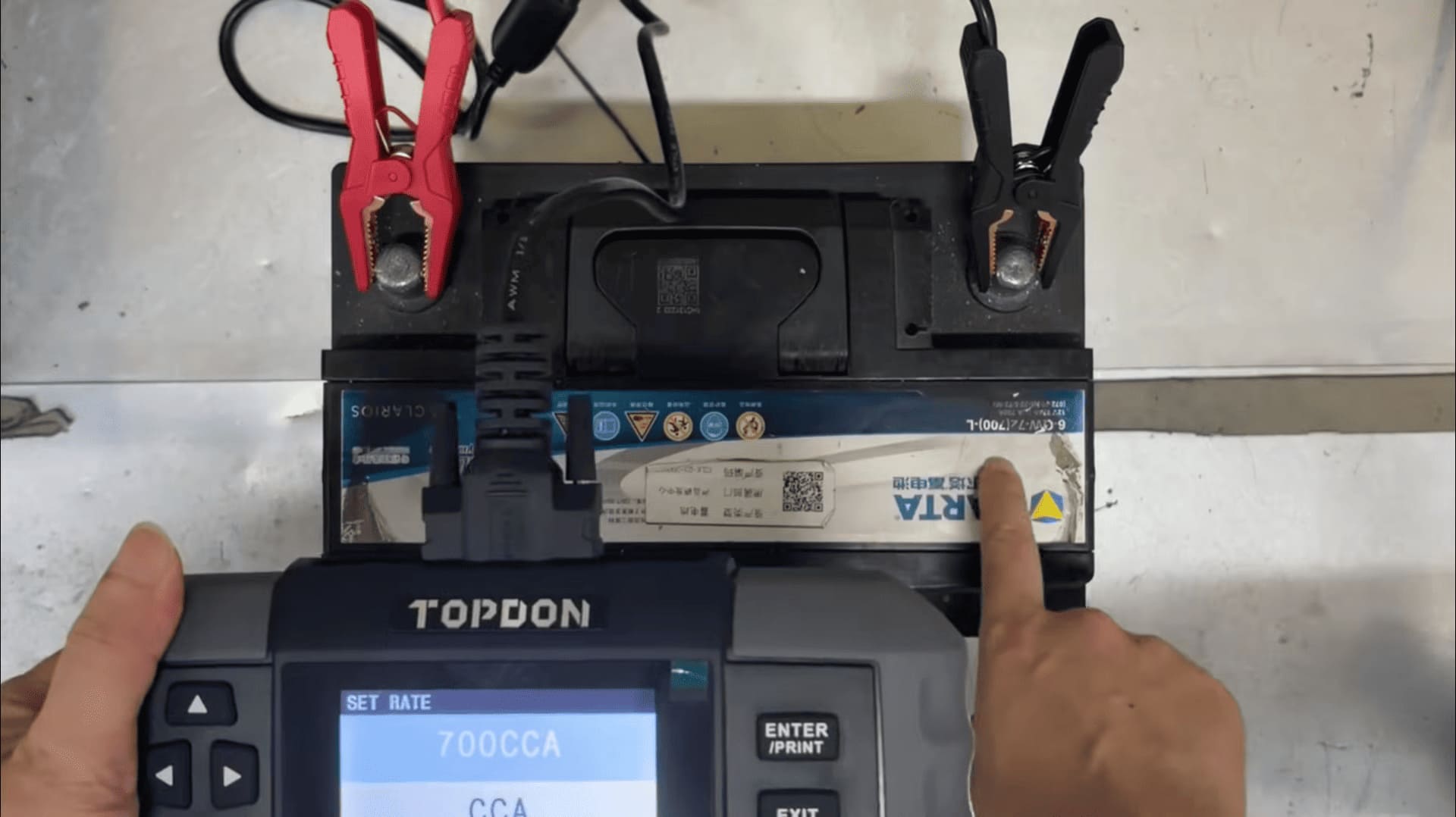
3). Complete the battery test.
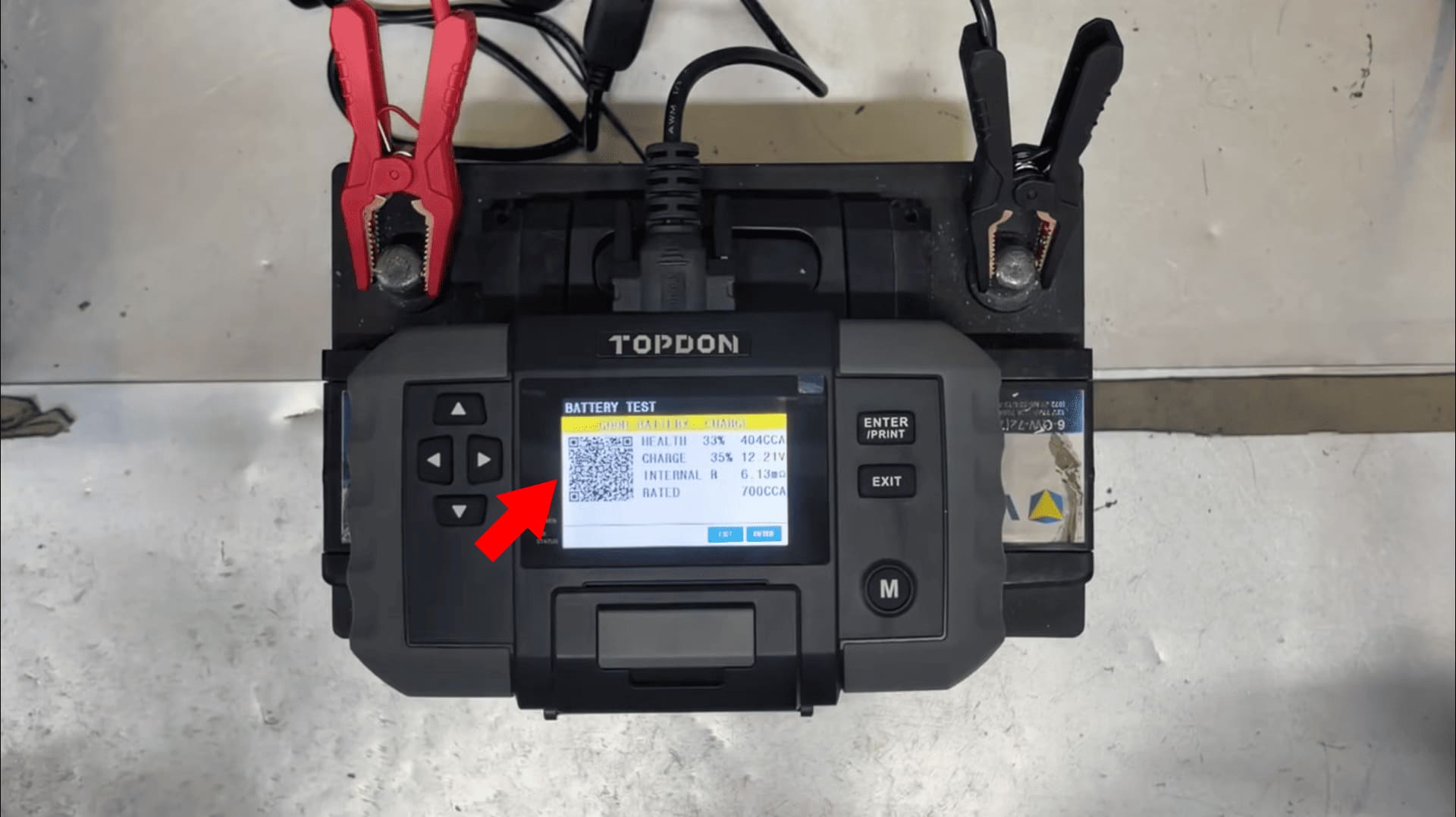
4). View the test results and the generated QR code.
5). Scan the QR code using any QR code reader. No specific mobile app is required.
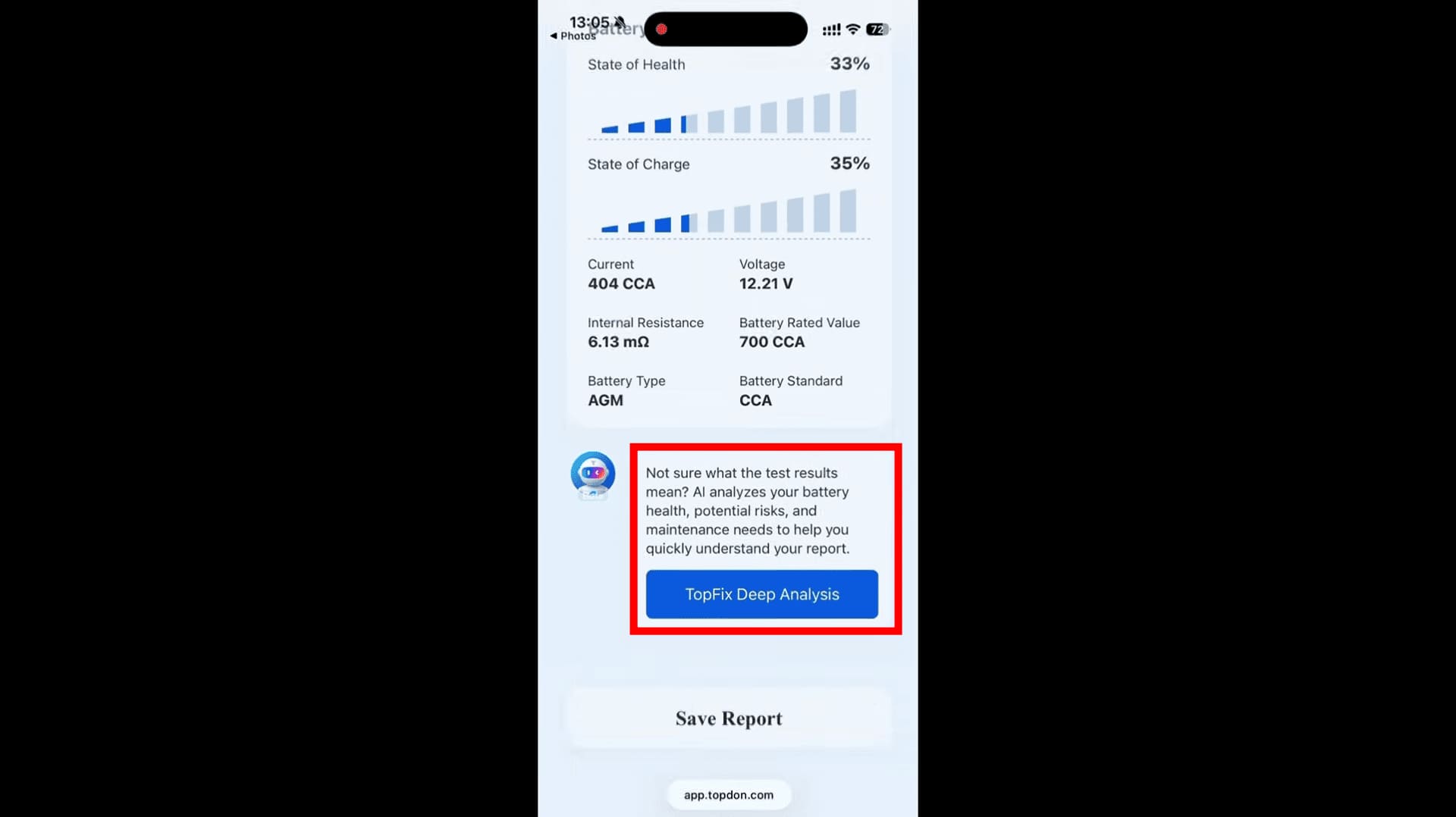
6). Open the scanned link to retrieve the battery test results.
If the software fails to detect the device, disconnect other USB devices. Connect only this device to avoid recognition conflicts.