



In this guide, we’ll walk you through the Apple Watch setup, data synchronization and Bluetooth connection process, so you can lock and unlock your car directly from your wrist.
1. Open the KD Mobile Key app → tap Settings in the top-right corner → select Apple Watch. If the bottom button in the app is grayed out / unclickable, it means the watch app is not open.
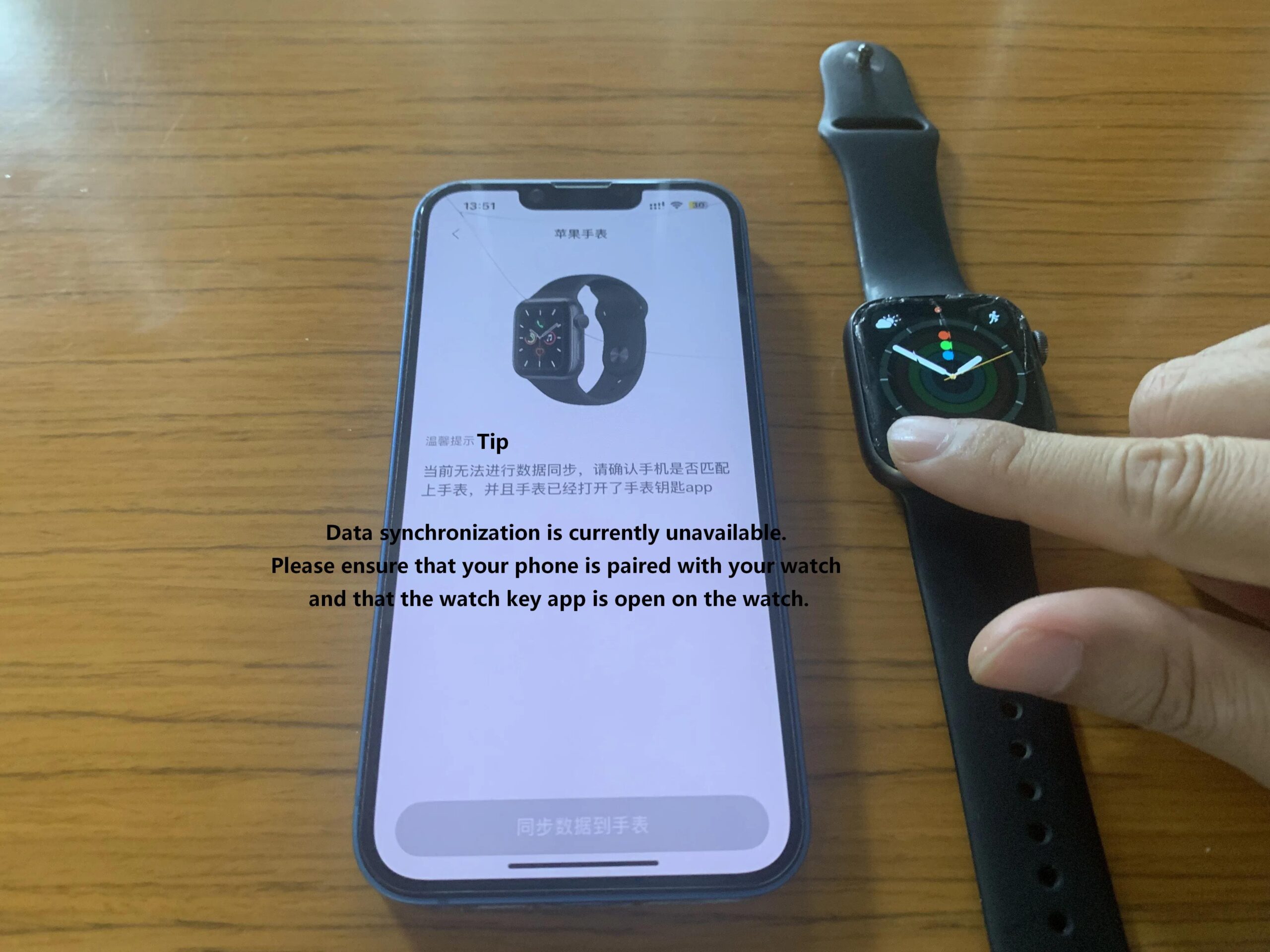
2. Once both the watch app and the KD Mobile Key app are open, the phone will display “Data sync is available” (or “Ready to sync data”), and the Sync Data button on the phone becomes active.
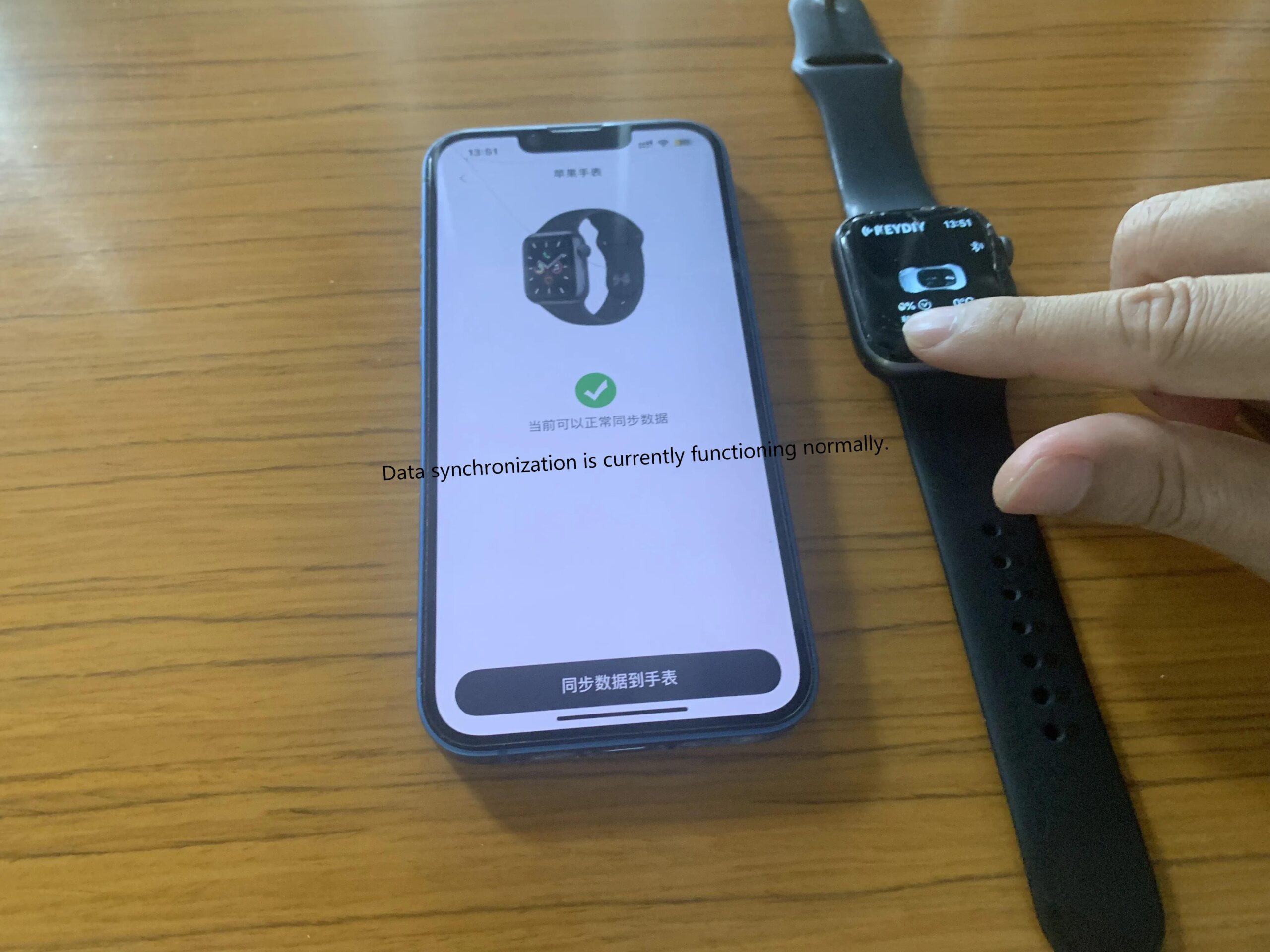
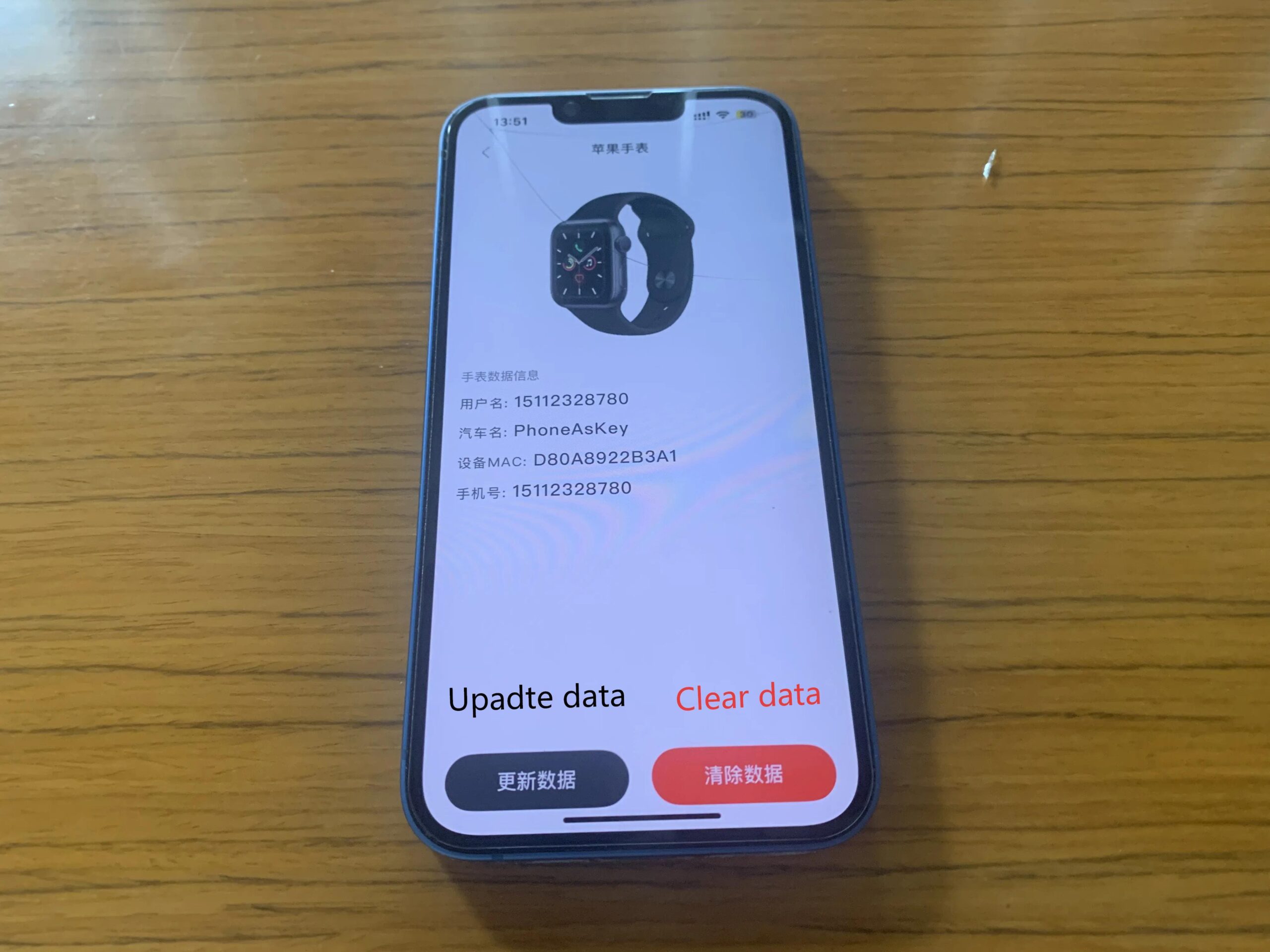
3. Tap Sync Data. The screen will show data synchronization status messages—seeing the sync confirmation indicates that data synchronization has succeeded.
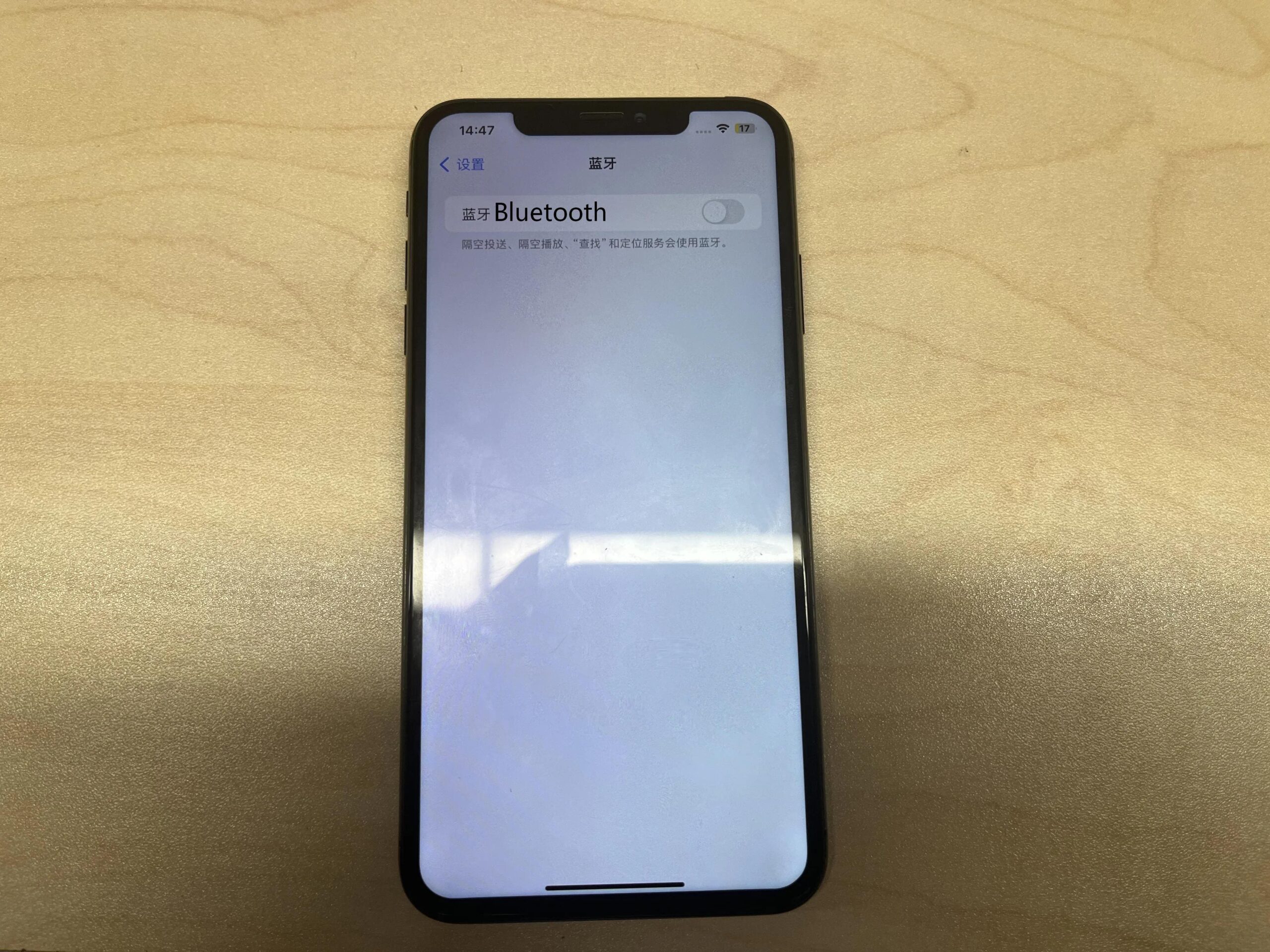
4. Disconnect the Bluetooth connection between the phone and the KD Mobile Key Box (turn off Bluetooth on your phone).
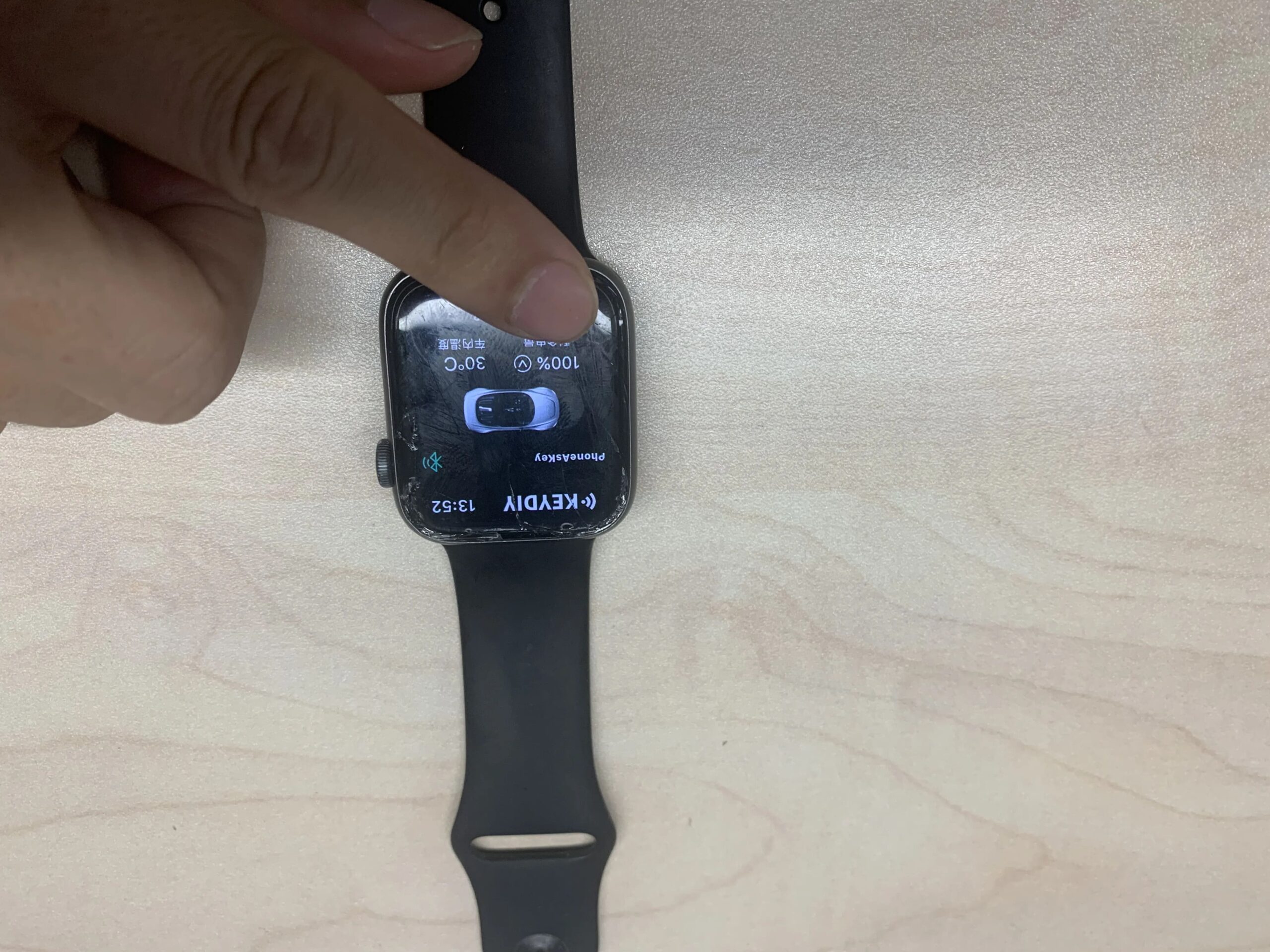
5. Bring your Apple Watch close to the KD Mobile Key Box; the watch will connect via Bluetooth automatically. When the Bluetooth icon on the watch turns green, the Bluetooth connection is successful, and you can now lock/unlock the car doors from your watch.
Note: In the current version, the phone and the watch cannot connect to KEYDIY PAK09 at the same time (one active connection at a time).