
Getting started with OBDSTAR ECU Master PC software? Whether you are setting up your unit for the first time, looking up your dealer info for technical support, or running routine updates, here is a complete walkthrough to keep your equipment up to date and running smoothly.
Pre-requisites & System Requirements
Before downloading the setup package from the official OBDSTAR Download Center (https://www.obdstar.com/DownloadStd_Downloadcenter.html), make sure your laptop or workstation is running Windows 10 or higher. The software currently supports both English and Chinese.
Managing Your User Account & Profile
1. Creating a New Account:
Launch the software and click [Personal Center] on the main menu
Click [Register] in the lower-right corner
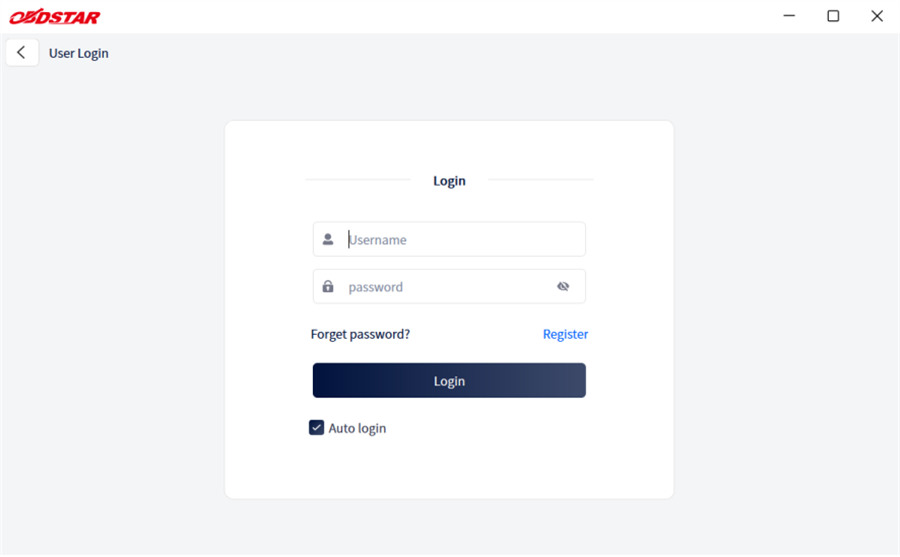
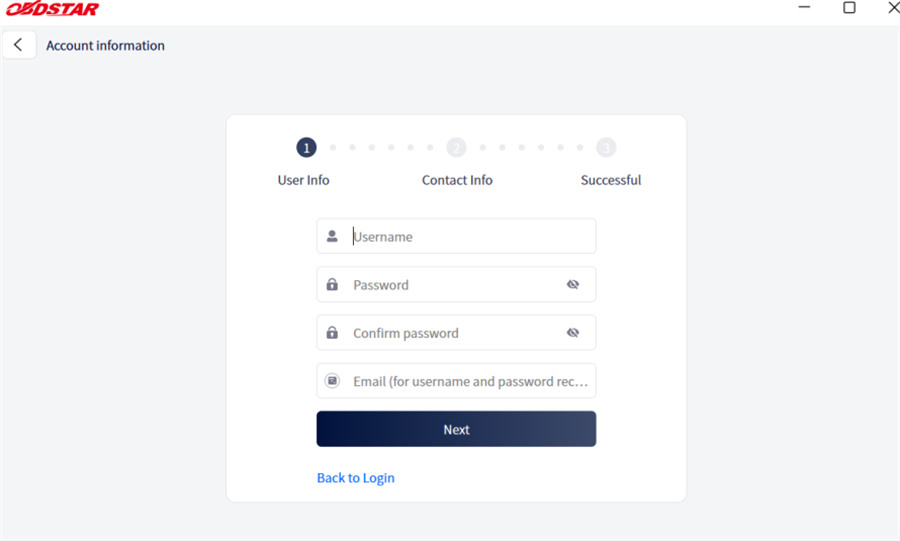
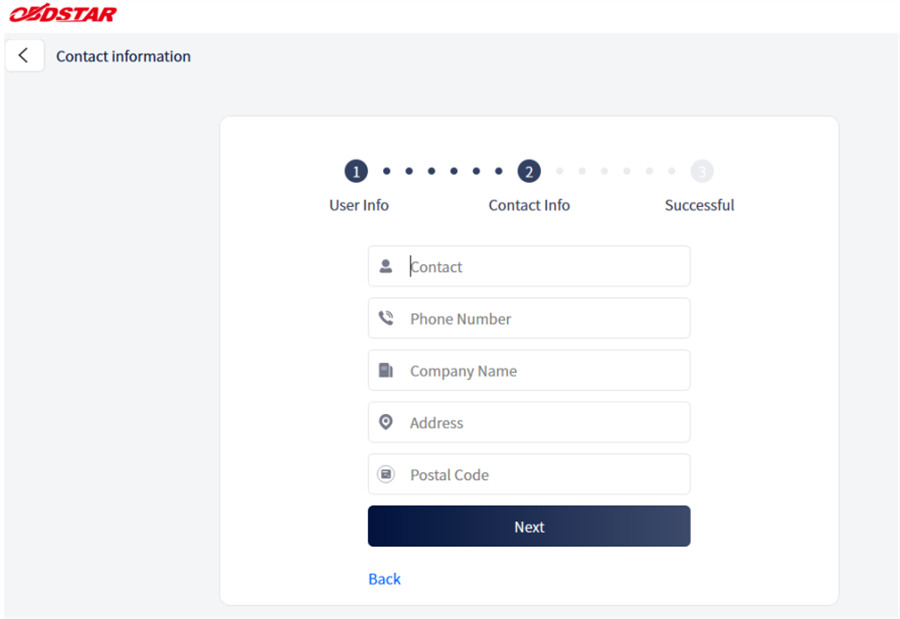
Fill in your information, and hit [Log in now] once registration is confirmed.
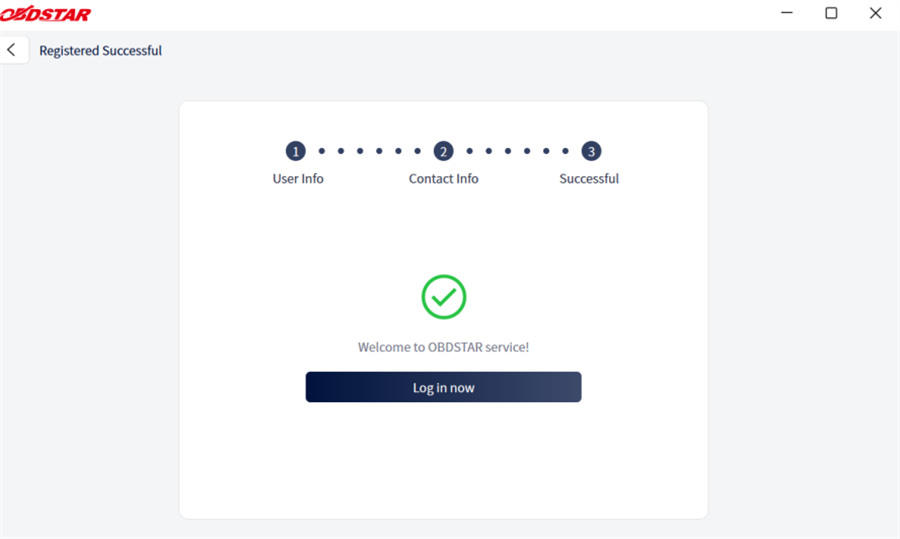
2. Signing In & Password Reset:
Enter your user name and password on the login screen
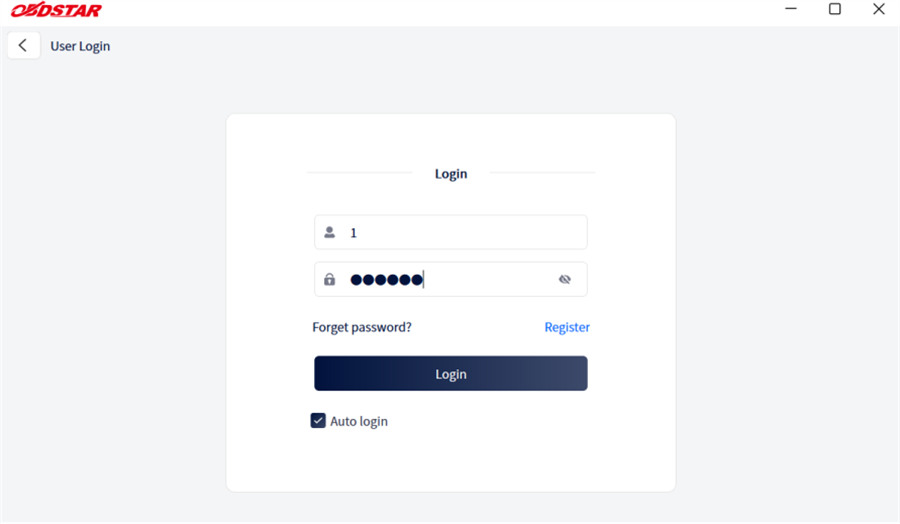
If you ever get locked out, tap [Forget password] to reset your login details via identity verification
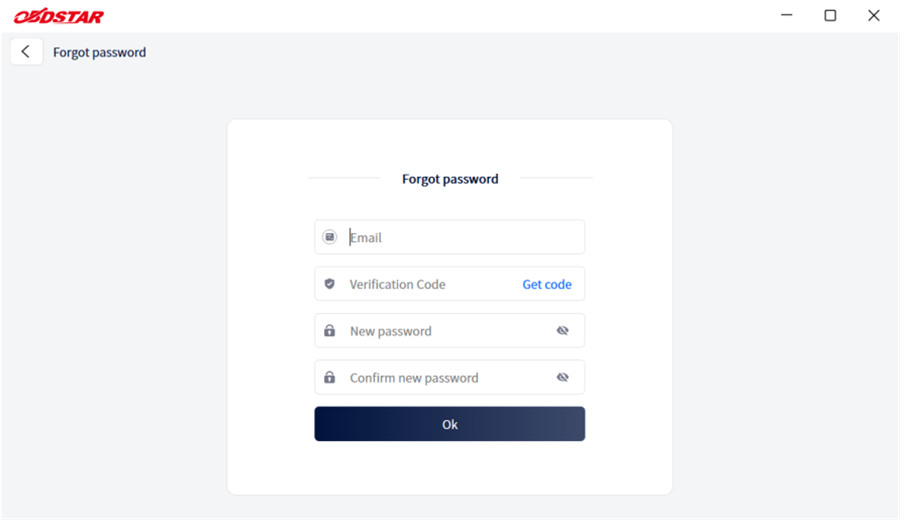
3. Updating Software
To ensure smooth software updates without missing core files or corrupting databases, follow these steps:
- Log In First: Always ensure you are signed into your account before clicking upgrade.
- Understanding Core Files: Go to the Upgrade The tool automatically checks all downloadable packages. You can uncheck car brands you don’t use, but grayed-out checkboxes are required system files—the software will not let you uncheck these to ensure system stability.
- Use the Quick Search: Don’t waste time scrolling! Use the Search Bar in the upper-right corner to type vehicle brands, software names, or letters.
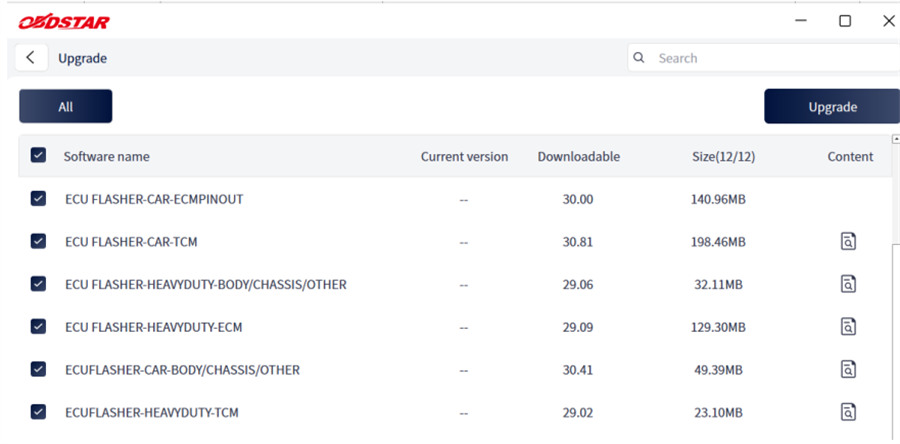
- Review Version Notes:Click the Info icon on the right side of any listed software to check what bug fixes or new features were added.
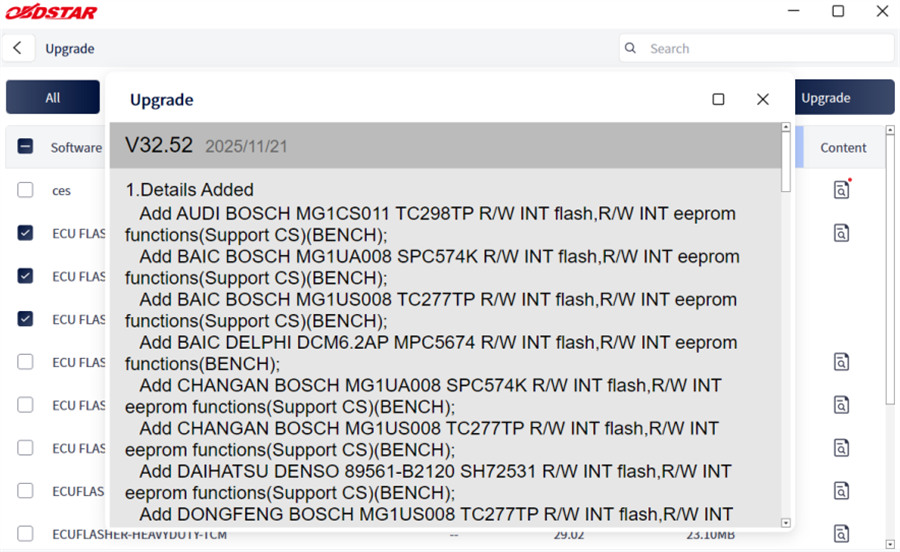
- Start the Download:Click [Upgrade] in the top-right corner to start updating.
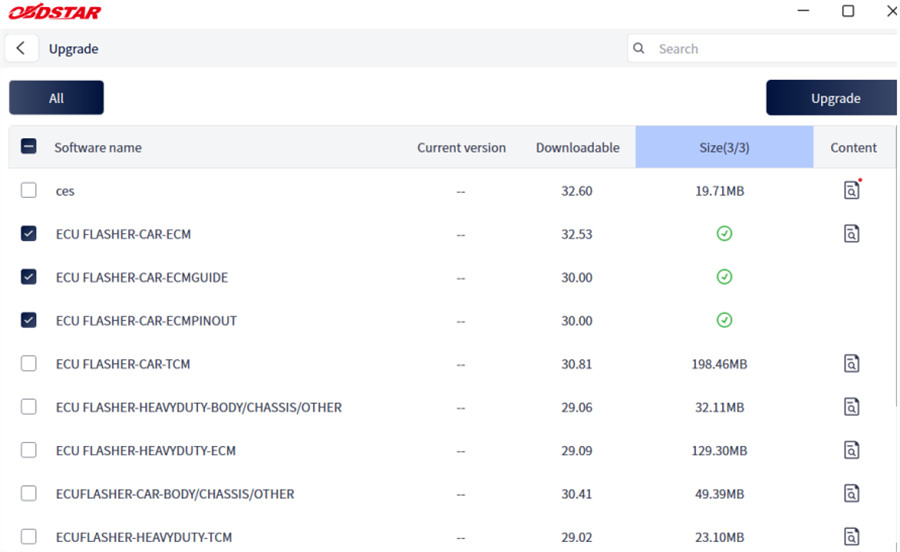
If you accidentally click it again during an active download, don’t worry—the system will simply display a popup: “Downloading. Please try again after the download finishes.”
4. Updating Security & Personal Details:
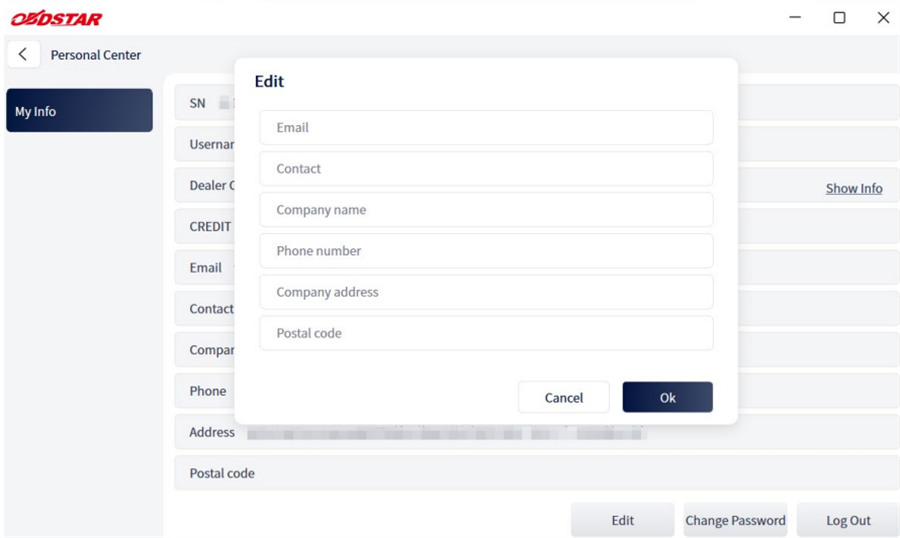
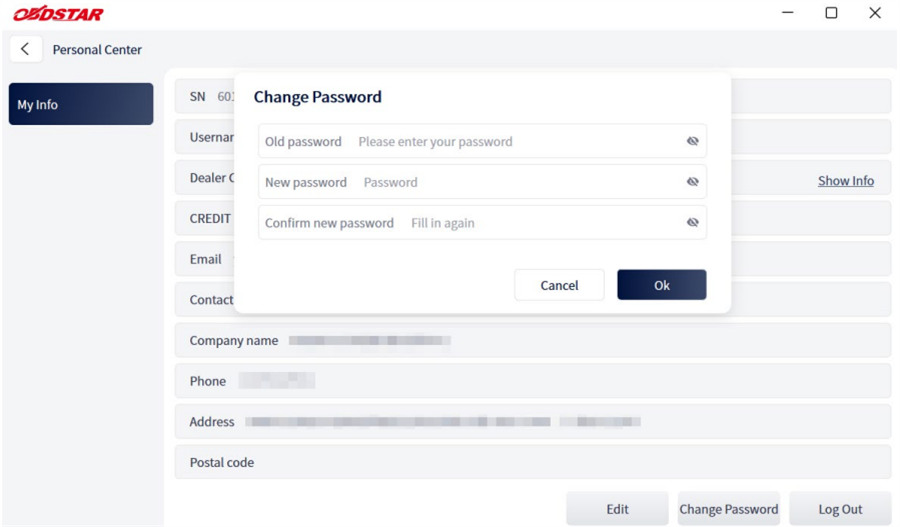
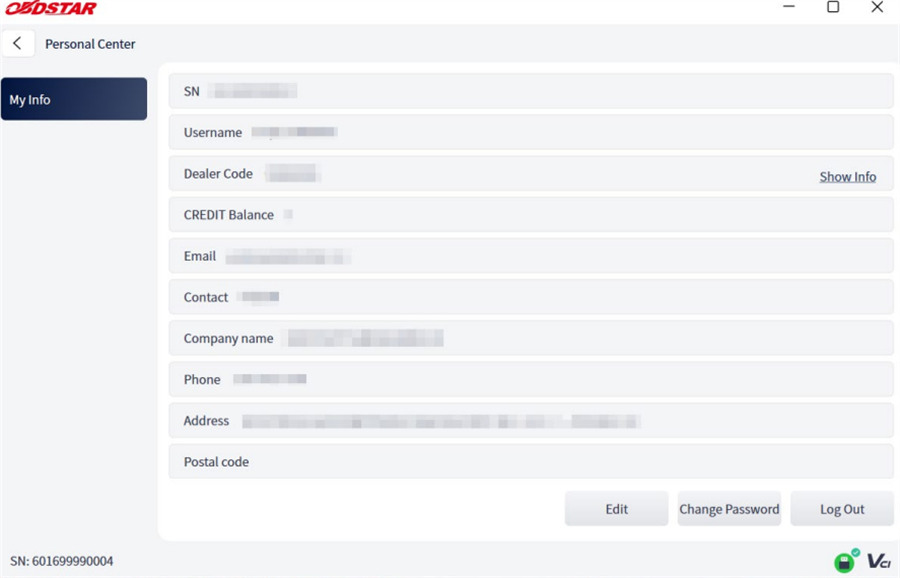
Use the [Edit] button at the bottom of the “My Info” screen to update your contact info or hit [Change Password] to update your account password.
5. Checking Your Dealer Code & Support Info:
Need tech support? Go to Personal Center > My Info
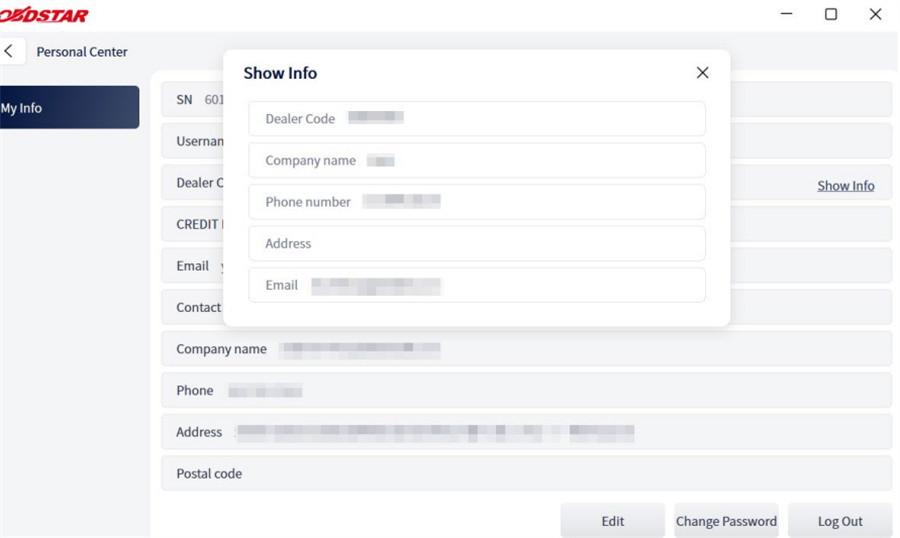
Click [Show Info] next to the Dealer Code line
This instantly shows your direct distributor contact details.
Learn more:
http://blog.cardiagtool.co.uk/obdstar-ecu-master-vs-obdstar-dc706-vs-obdstar-p50/